

Tasks Wizard
Using Tasks Wizard
This guide walks you through Tasks Wizard 3 on iPhone, iPad and Mac, from the first launch to sharing tasks with people outside your team. Screenshots are from iPad unless noted; iPhone and Mac work the same way. Tap any screenshot to see it in full size.
Getting started
First launch
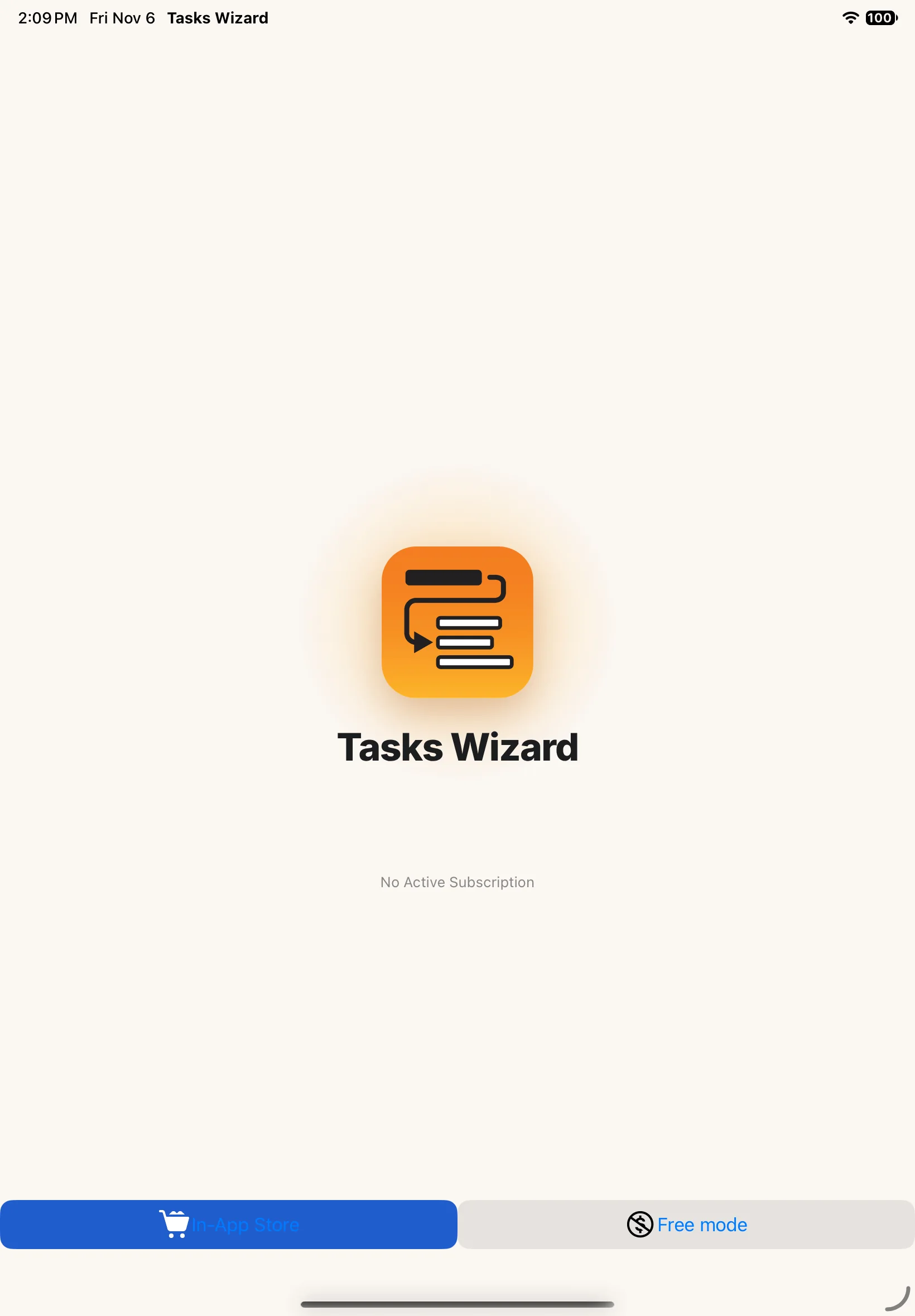
When you open Tasks Wizard for the first time, it has no data yet and, most likely, no subscription. After the splash screen you get two choices: In-App Store to subscribe, or Free mode to try the app with some limits.
Tasks Wizard creates a first project for you, My First Project. You can rename it or delete it later.
Subscribe or use Free mode
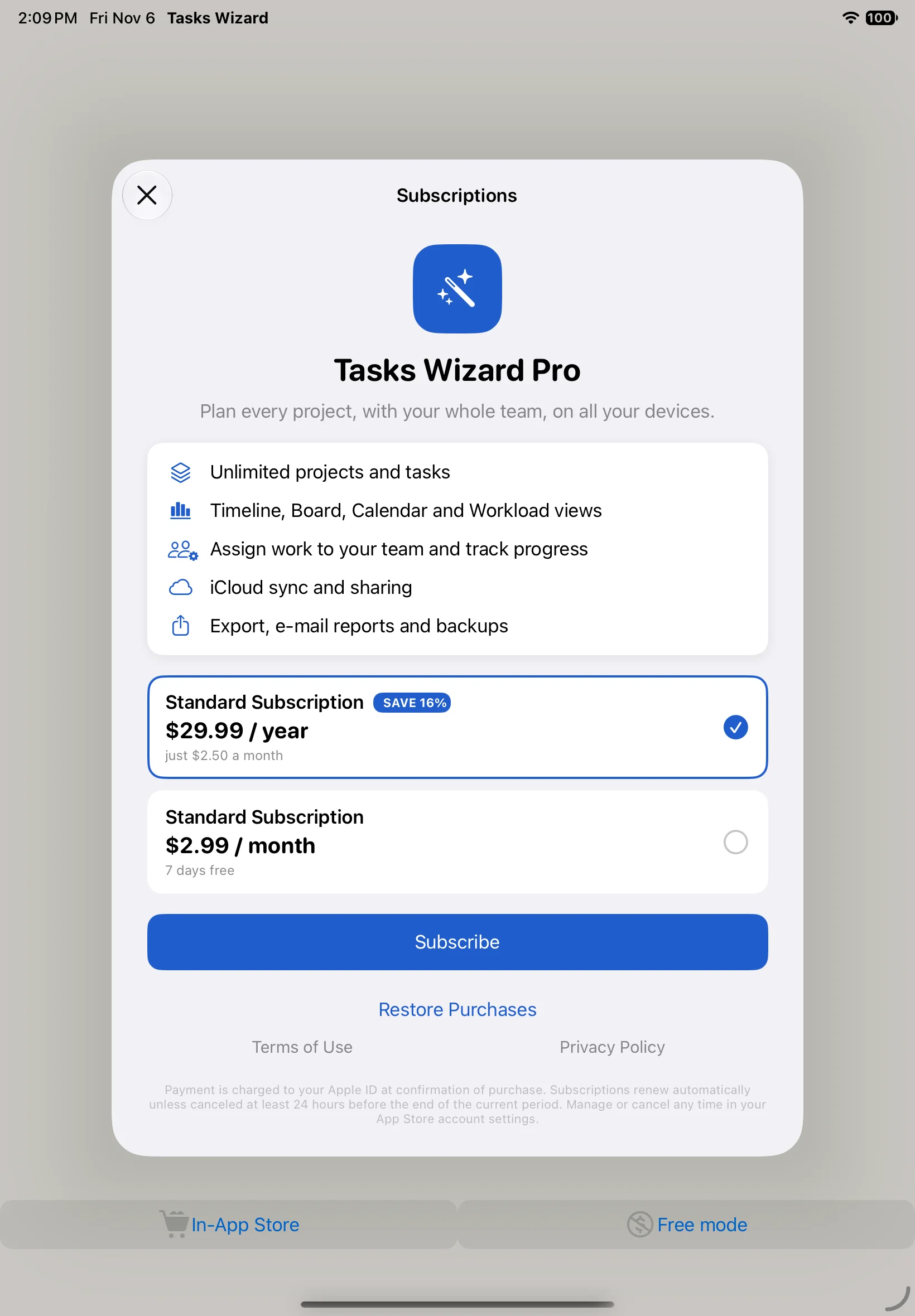
In-App Store shows the Tasks Wizard Pro plans: annual or monthly. New subscribers get a free trial. Restore Purchases brings back a subscription you already have on a new device or after reinstalling. See Subscriptions below for the details.
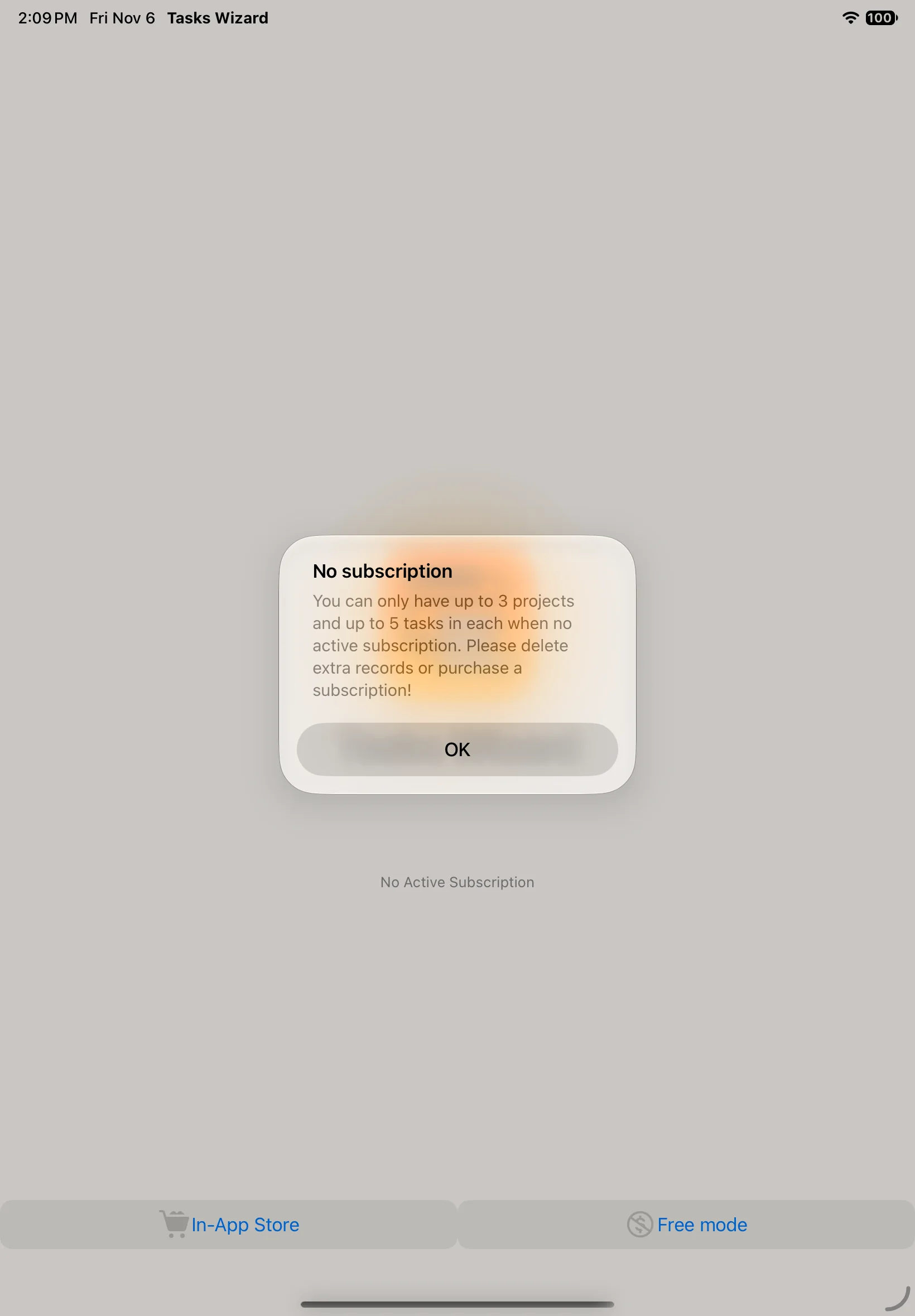
In Free mode you can have up to 3 projects with up to 5 tasks each. If you go over that limit, Tasks Wizard asks you to delete the extra records or subscribe.
Finding your way around
Navigation
On iPad and Mac, everything is in the sidebar: your current project at the top, then Views (Overview, My Work, Timeline, Board, Calendar, Workload, Outline, Task List), Setup (Shared Tasks, Team, Projects, Work Days, Settings) and Services (Export, Backup / Restore, iCloud Sync, Subscription, Support). Hide or show the sidebar with the button in the top-left corner.
On iPhone, the tab bar at the bottom gives you Overview, Timeline, Board and Calendar. More has everything else, including the project switcher.
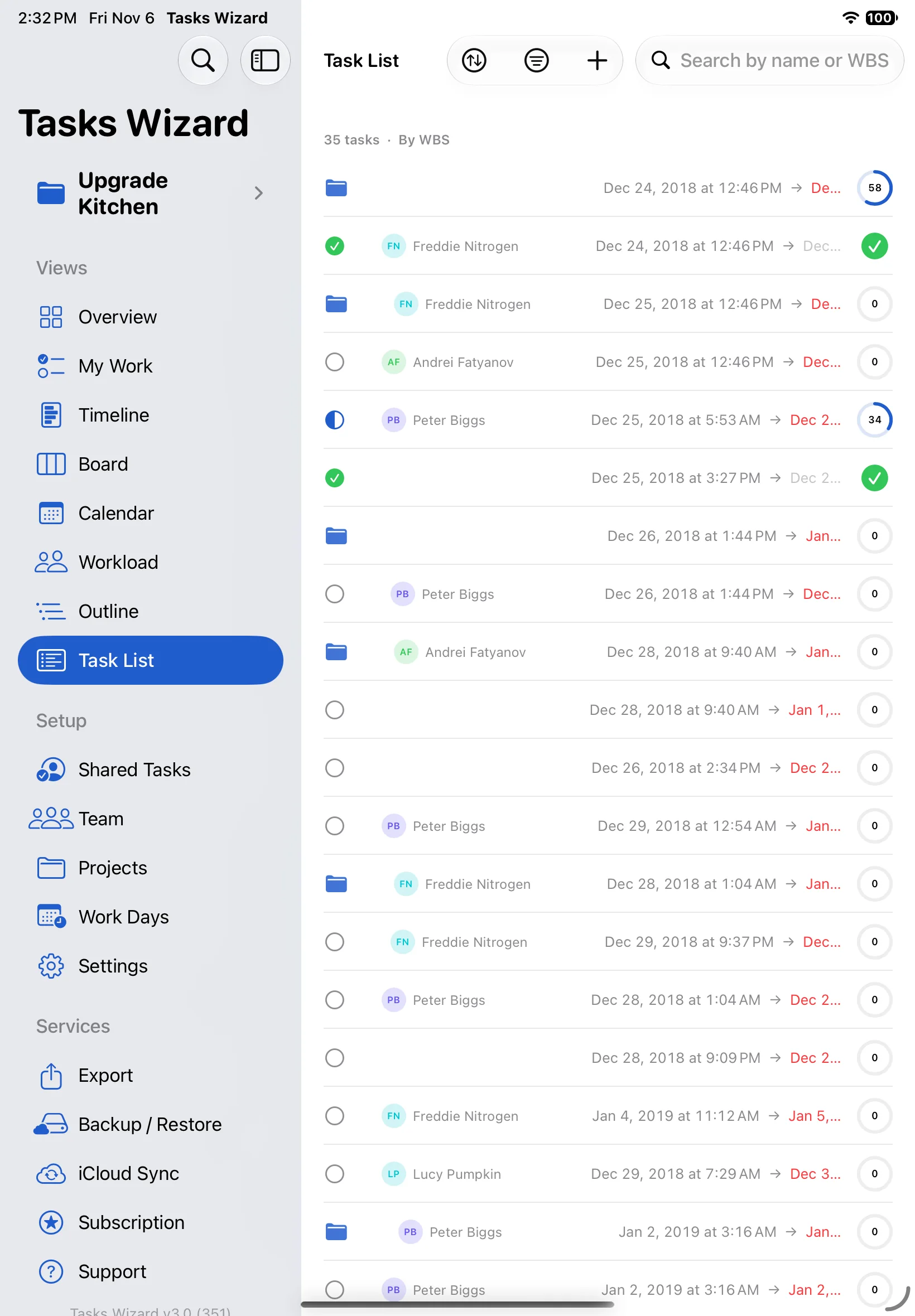
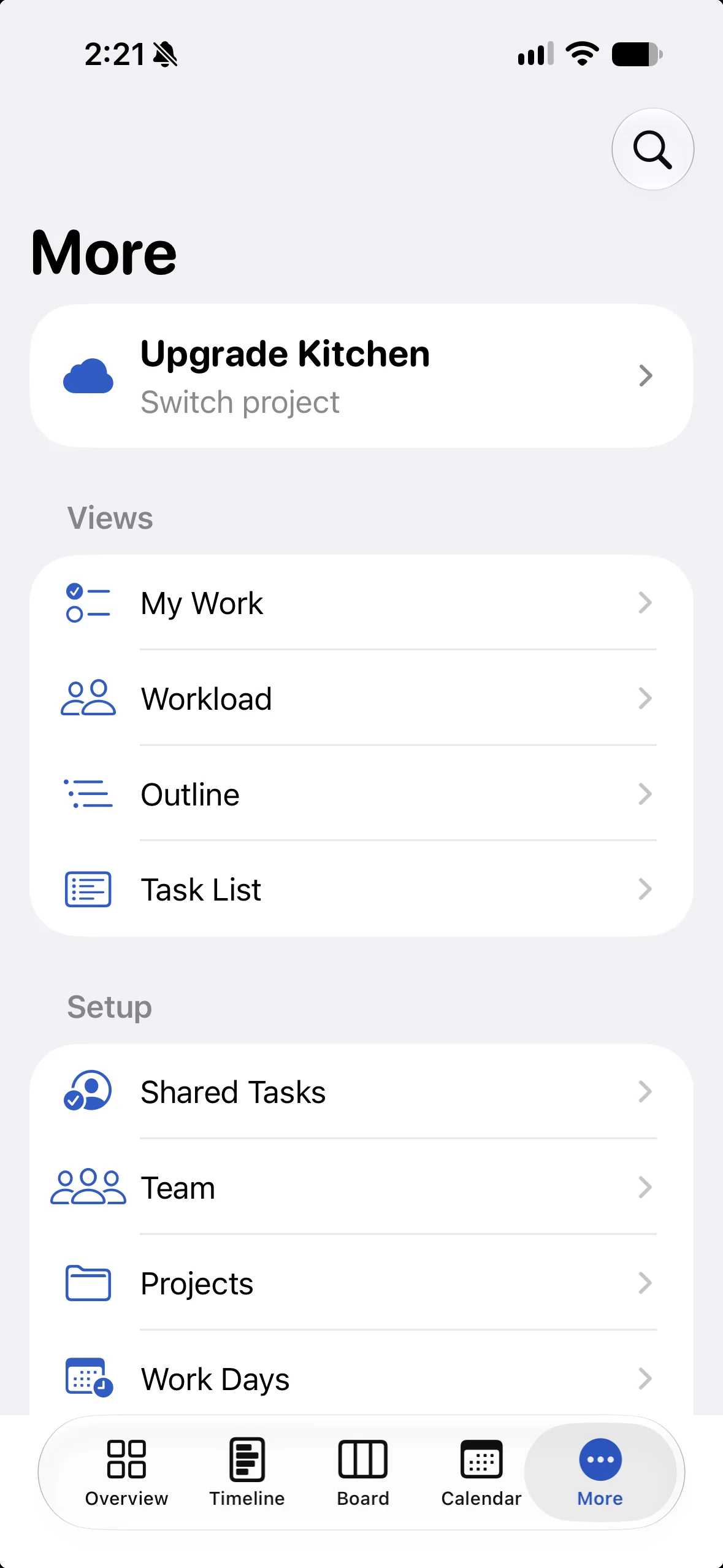
Overview
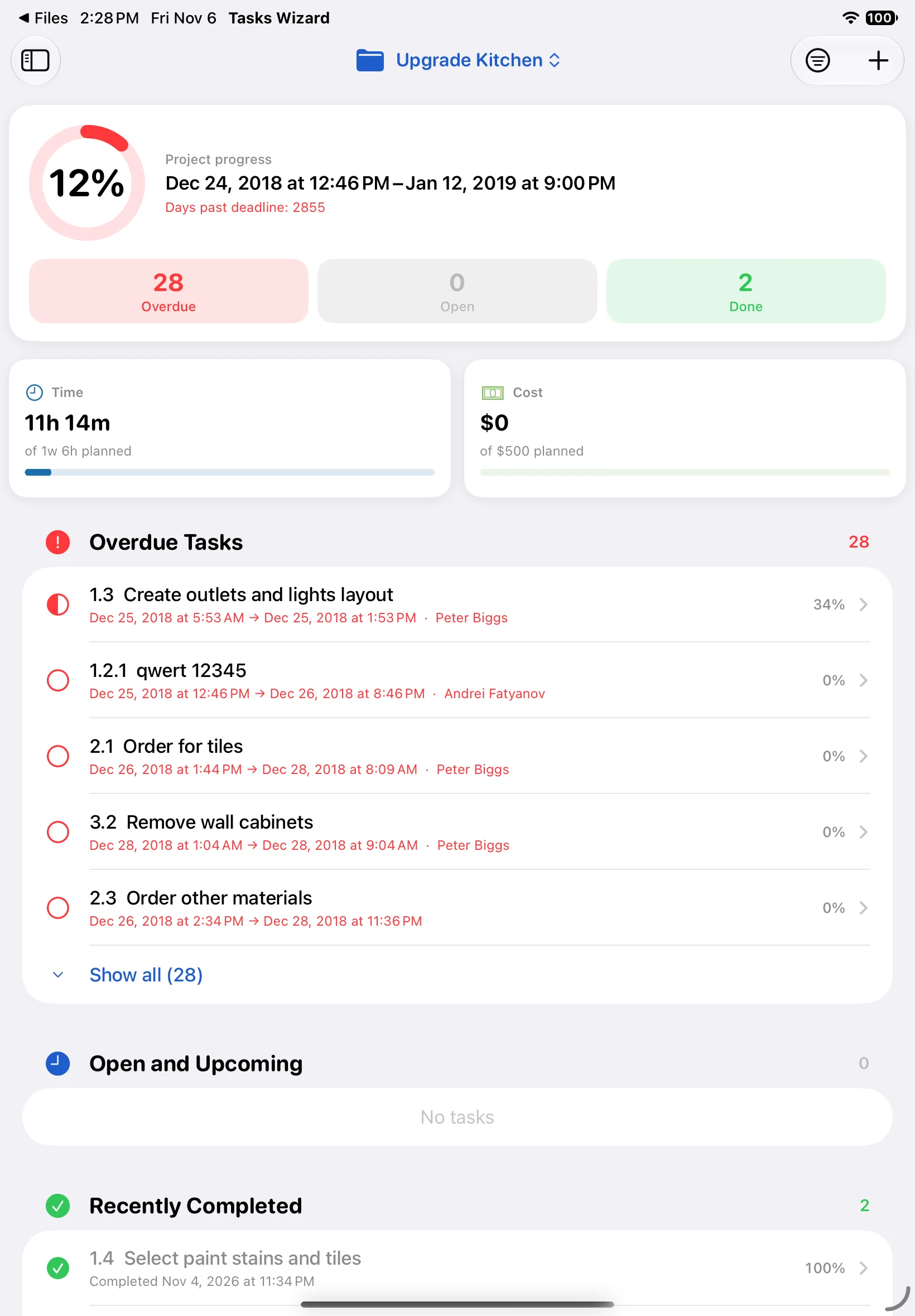
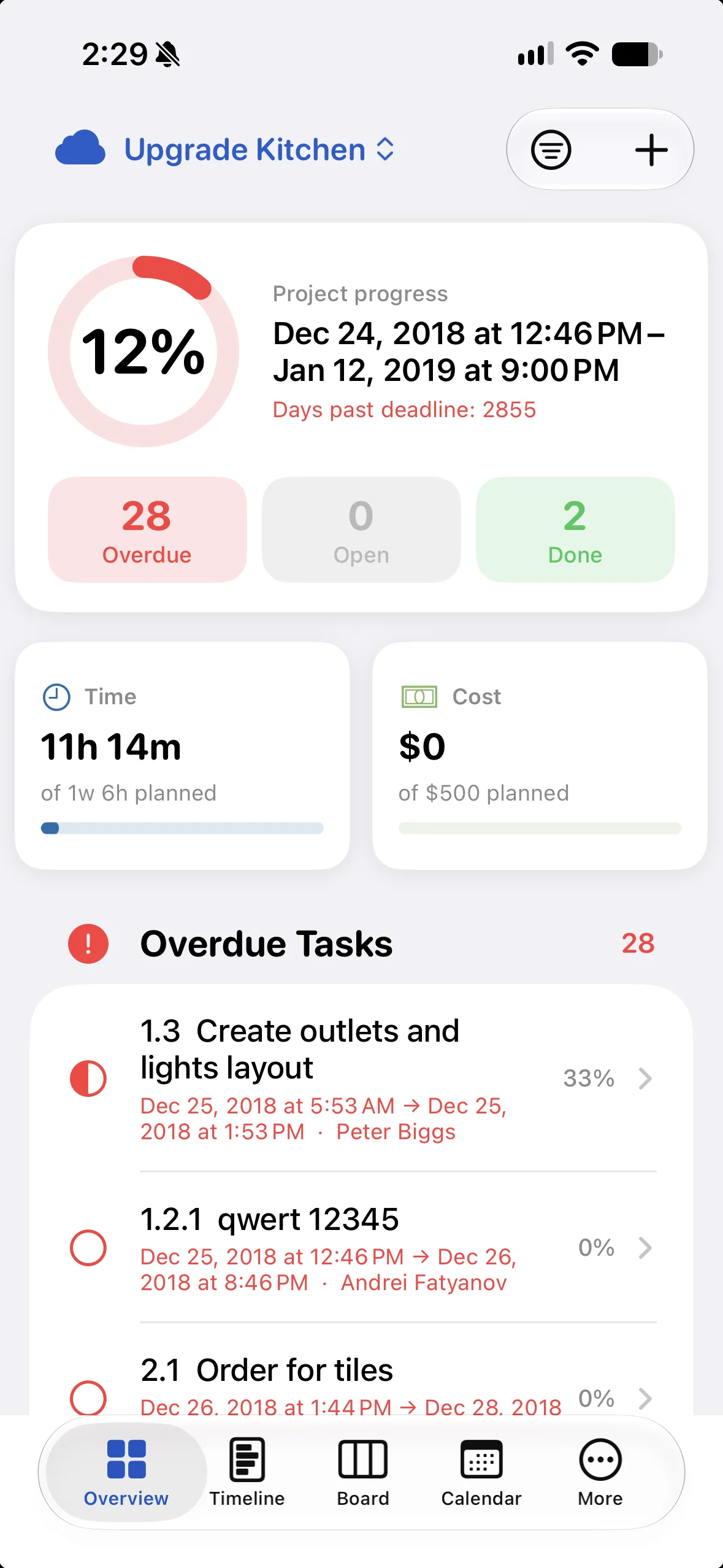
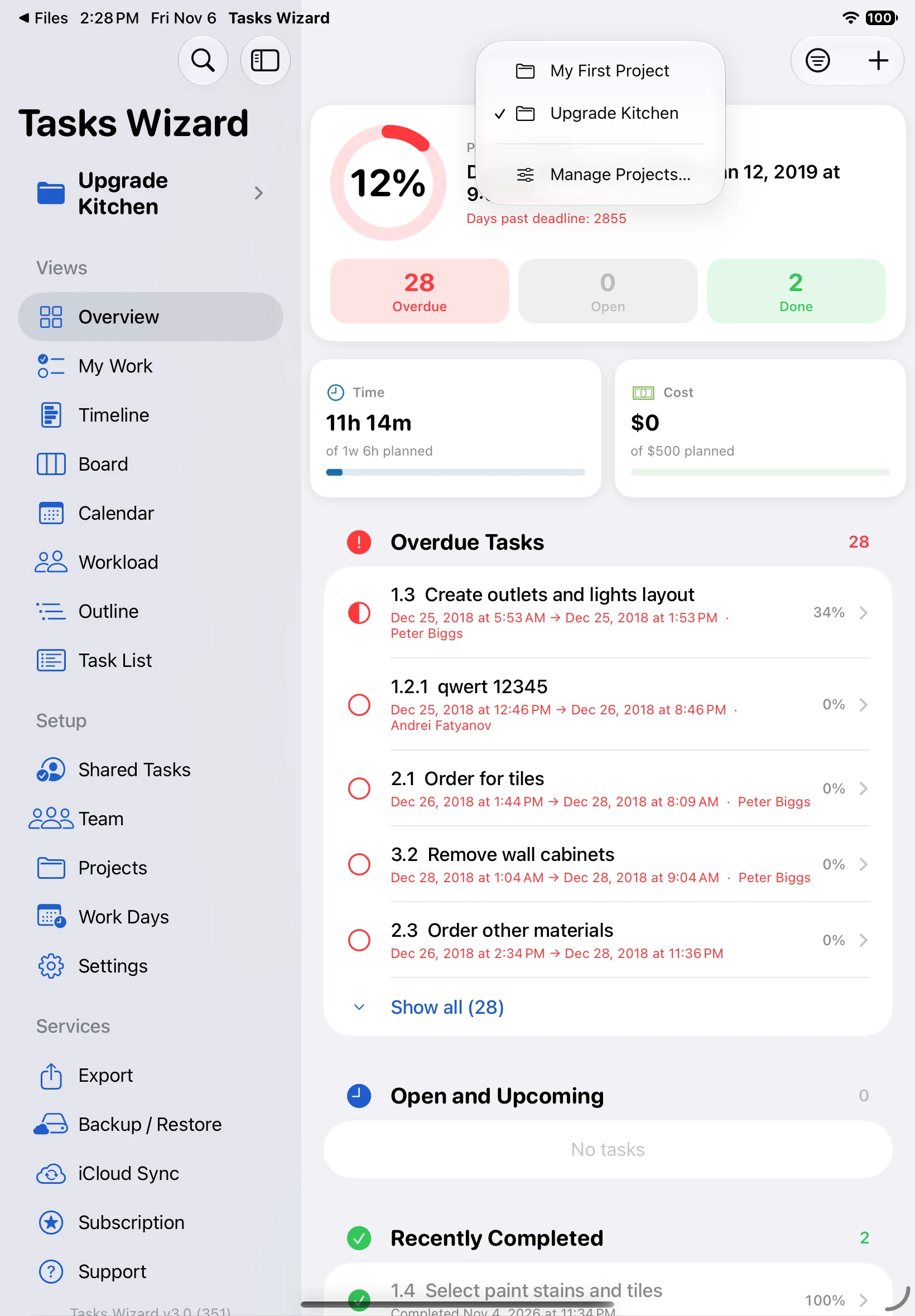
Overview is your project at a glance. The top card shows overall progress, the planned dates and how many days are left (or past the deadline), with counts of overdue, open and done tasks. Below it, Time and Cost compare actual against planned.
The lists show what needs attention: Overdue Tasks, Open and Upcoming, and Recently Completed. Tap Show all to expand a list, or the filter button at the top to narrow the lists by priority or assignee. Tap any task to open it.
Projects
Switch between projects
Tasks Wizard can hold as many projects as you need. Tap the project name at the top of the screen (or in the sidebar) to switch to another project, or choose Manage Projects… to see them all.
Set up a project
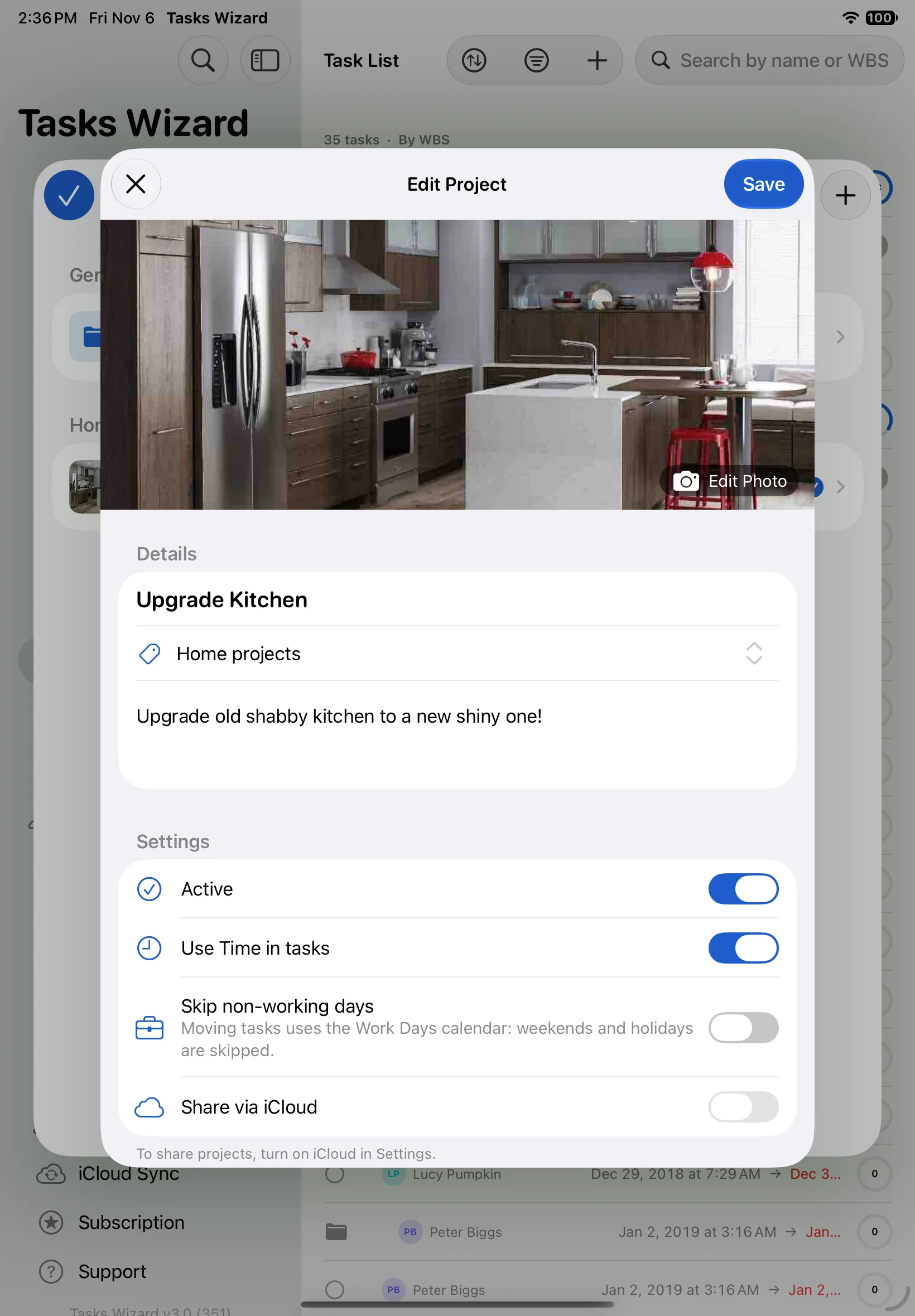
Open Projects in the sidebar and tap a project to edit it. Each project has:
- a photo, a name, a category and an optional description;
- Active: inactive projects are kept but set aside;
- Use Time in tasks: turn off if you don’t track hours;
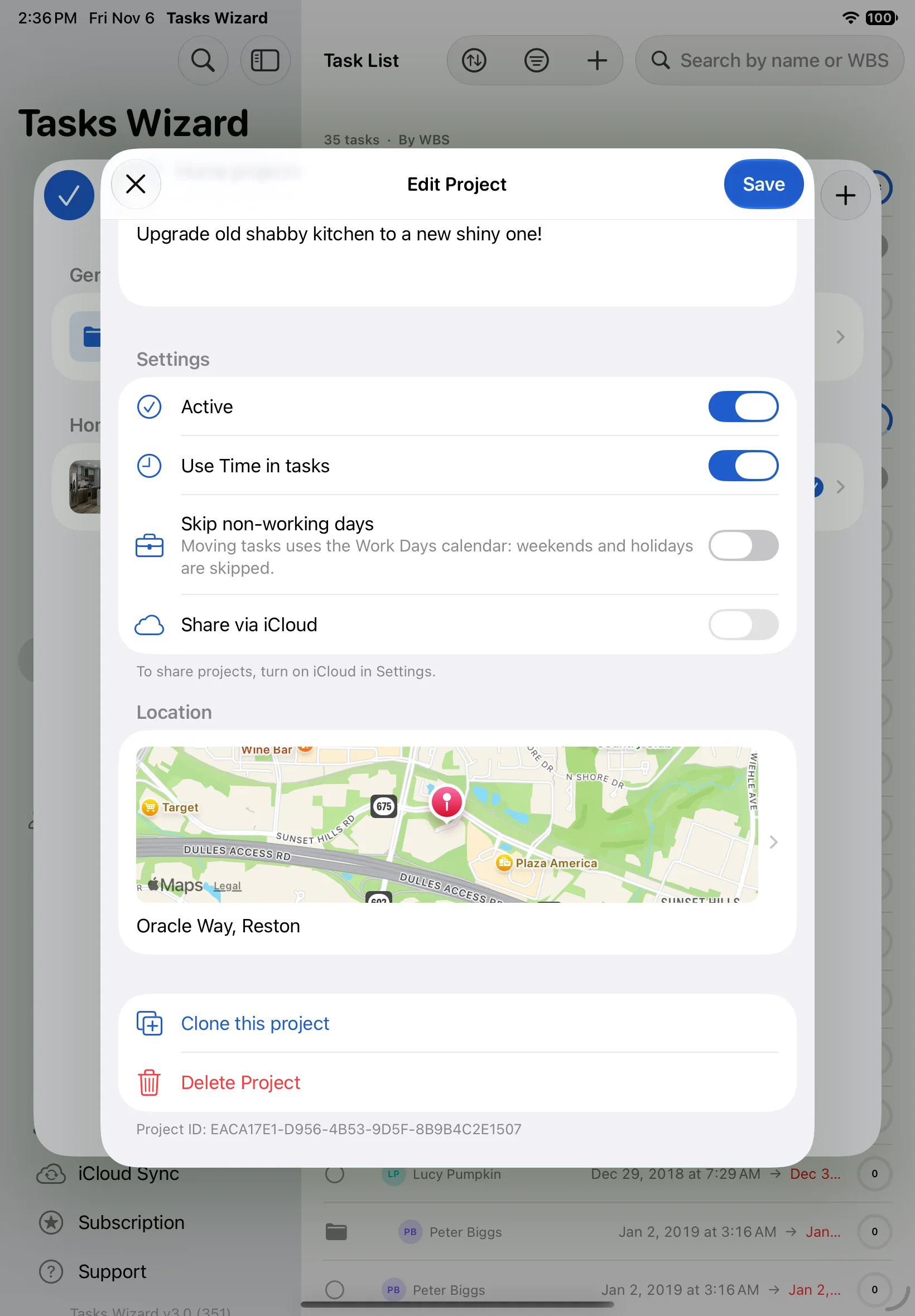
- Skip non-working days: when on, moving tasks uses your Work Days calendar, so weekends and holidays are skipped;
- Share via iCloud: see iCloud sync below;
- an optional location on the map.
At the bottom you can Clone this project to reuse it as a template, or Delete Project.
Tasks
Create a task
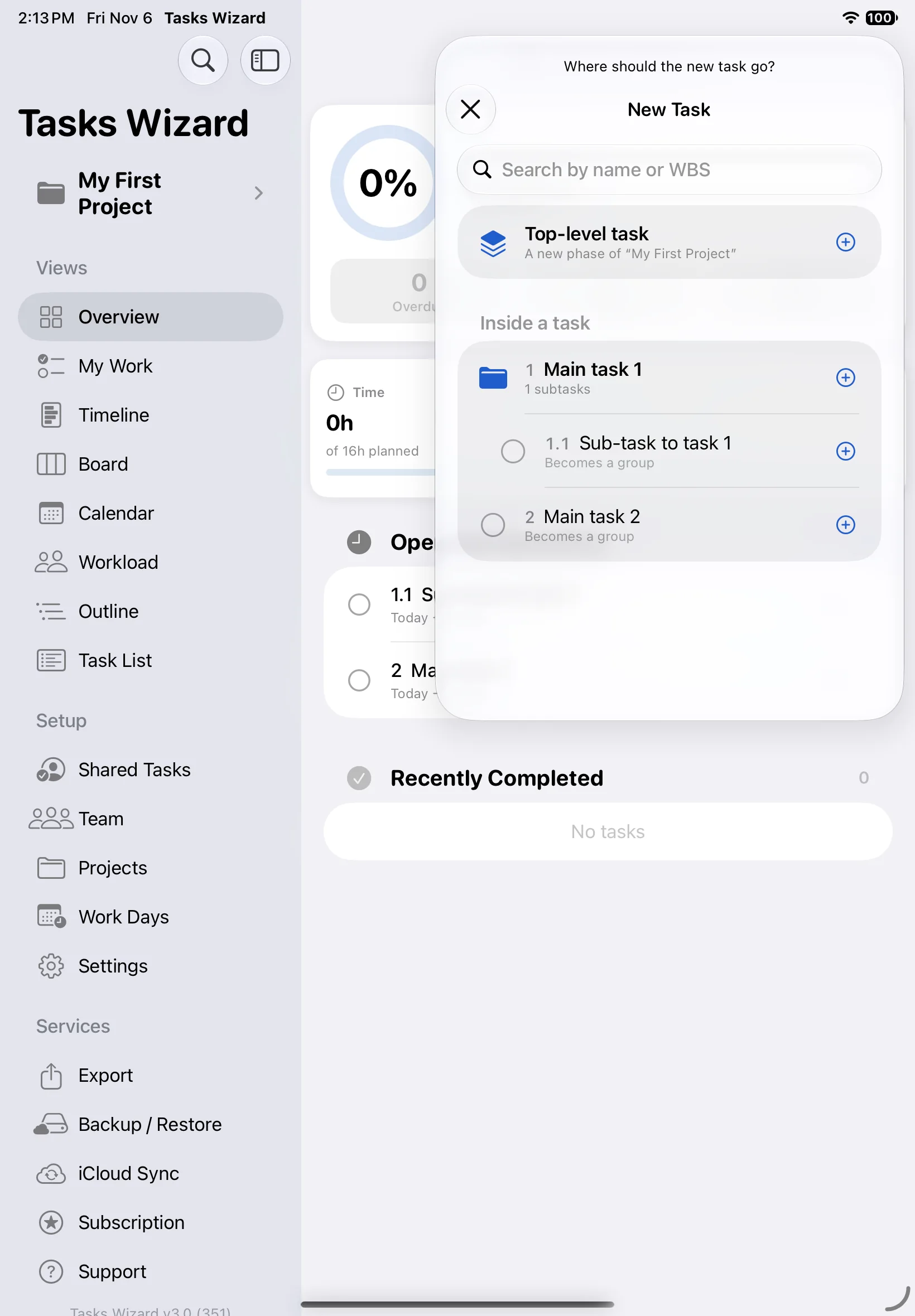
Tap + at the top of any task screen. First choose where the new task goes: a Top-level task starts a new phase of the project, or pick an existing task to add it inside that task. A task that gets subtasks becomes a group. Use the search field to find the parent by name or WBS number. Then fill in the task details.
Task details
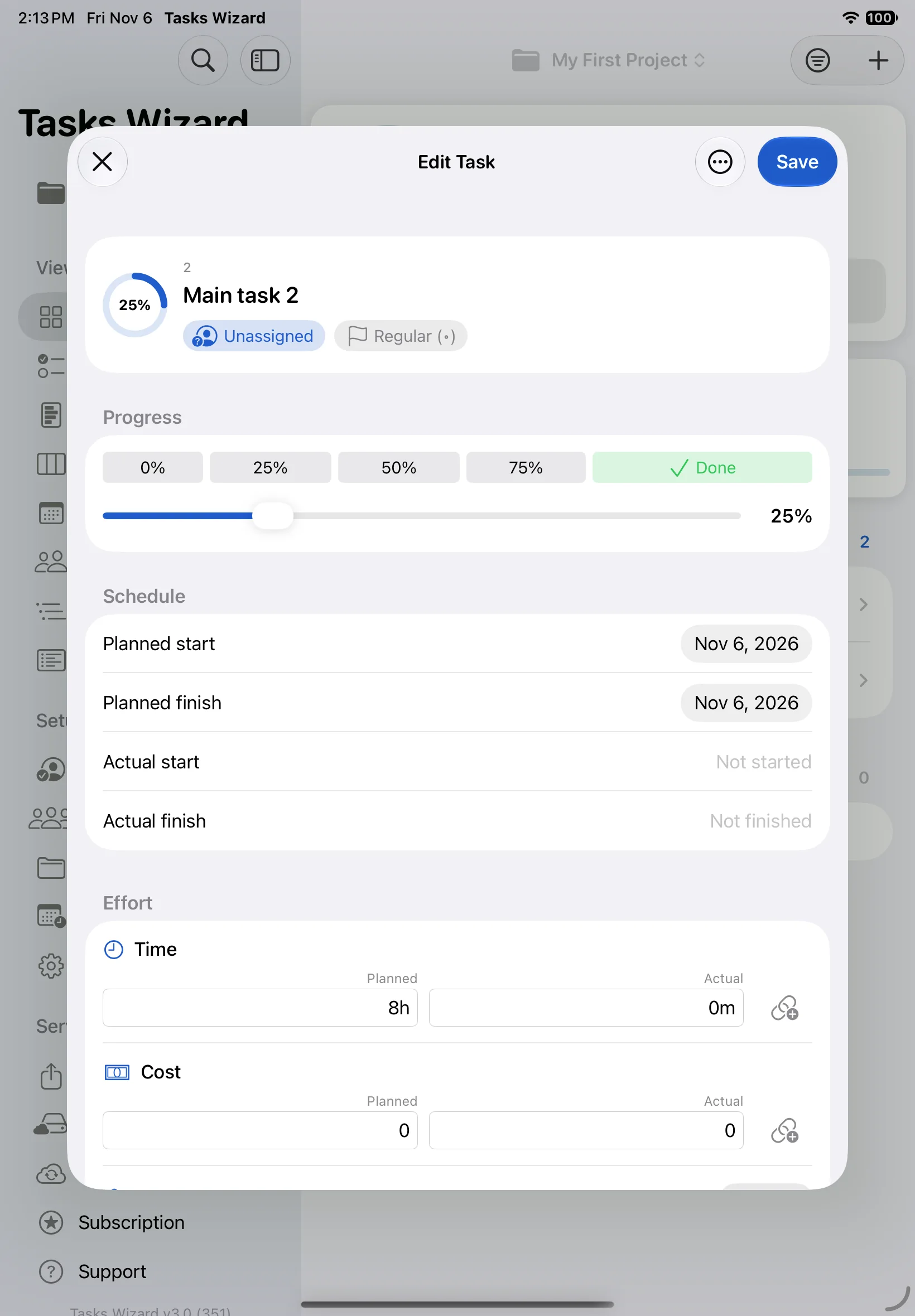
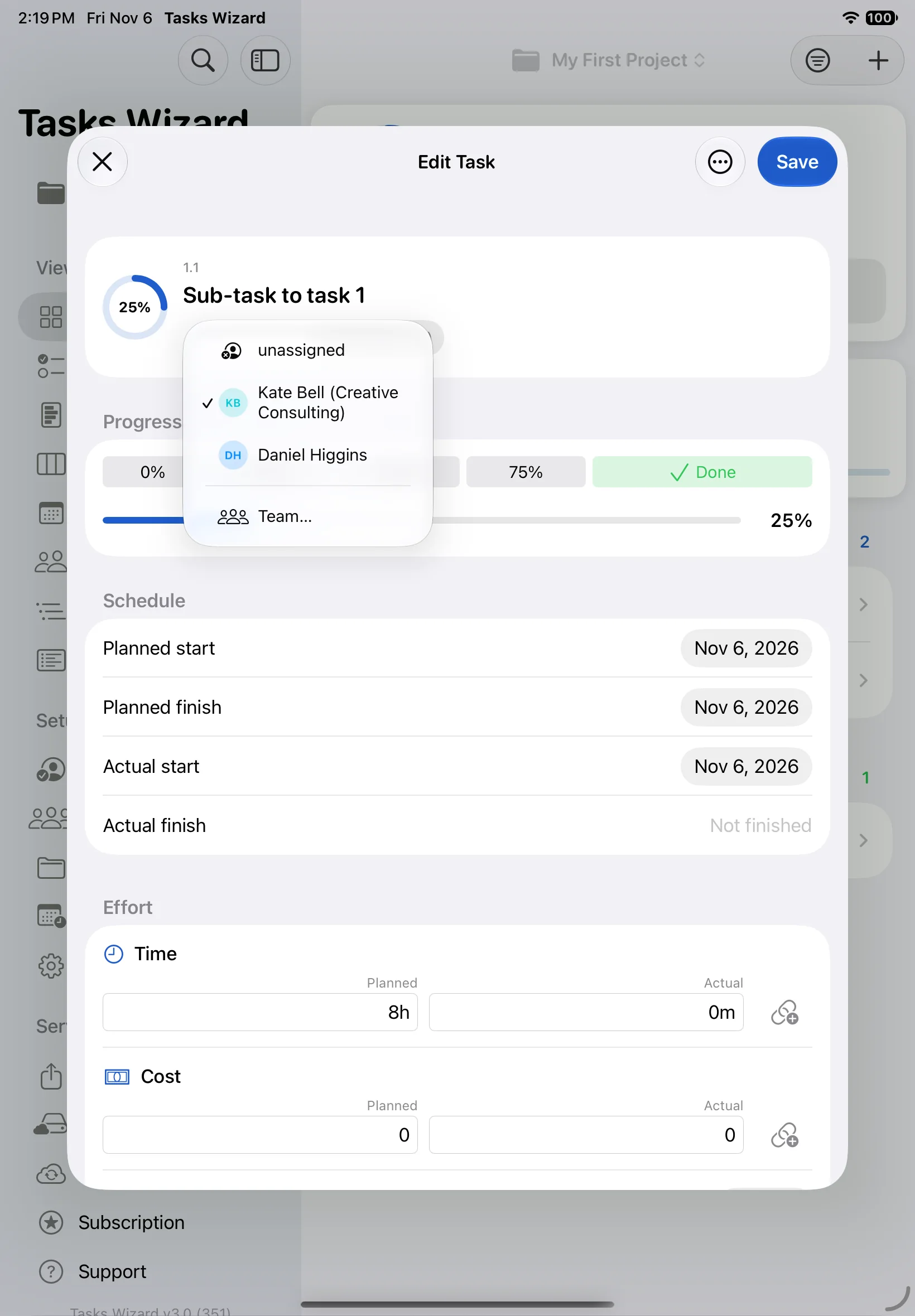
Edit Task is where you create and update tasks. At the top you see the task’s WBS number and title, who it’s assigned to and its priority.
- Progress: tap 0%, 25%, 50% or 75%, drag the slider, or tap Done.
- Schedule: the planned start and finish. The actual start is filled in when progress first moves above 0%, and the actual finish when the task reaches 100%. You can change any date by hand.
- Effort: planned and actual Time (for example 8h, 5d or 2w), Cost and Materials. Turn on the link icon next to an actual value and it follows progress automatically (actual = planned × progress).
- Task Notes: a longer description.
- Notifications: a reminder before the planned start or finish.
- Predecessors, Pictures and History: see below.
Priority, dates and materials
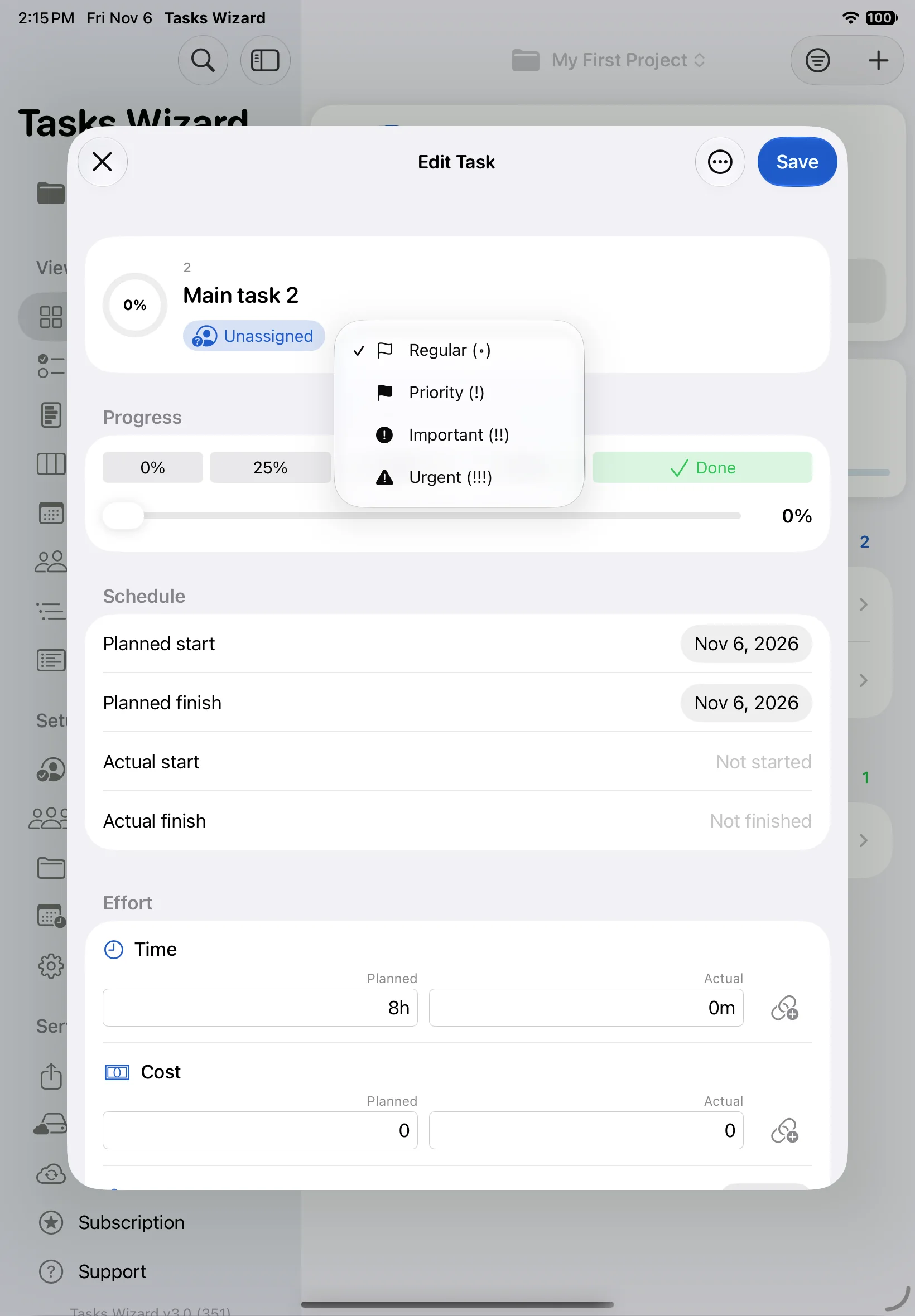
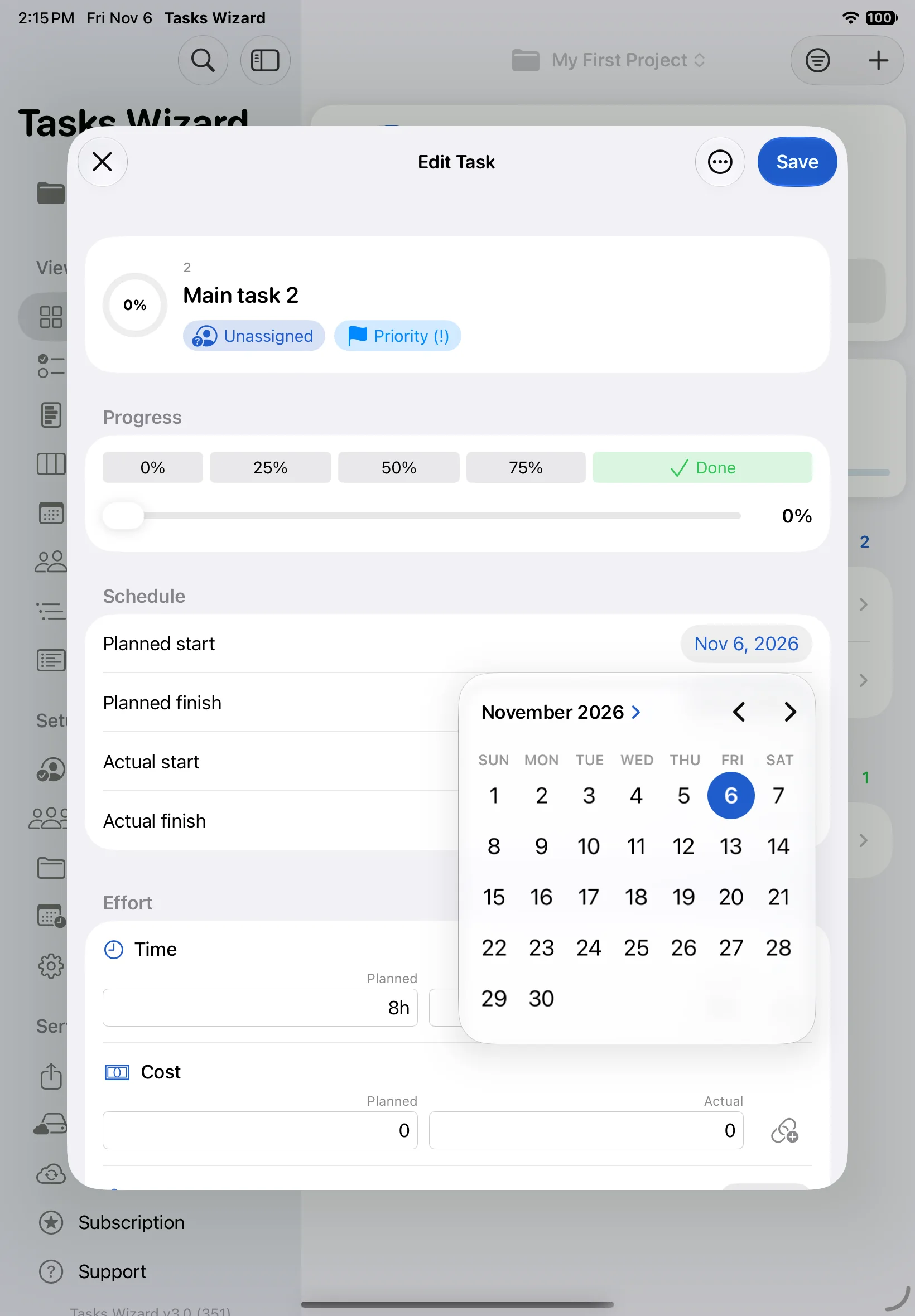
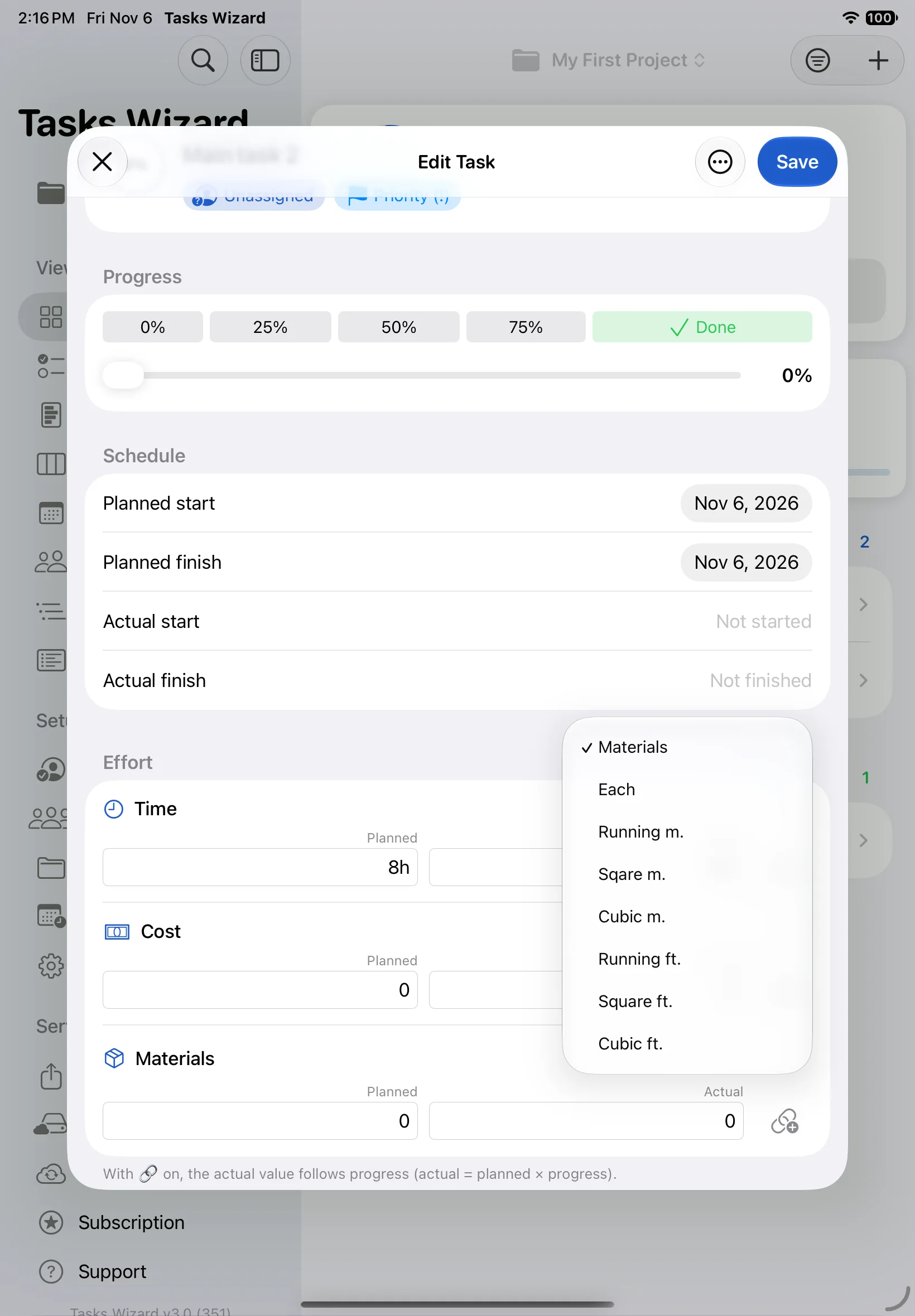
Tap the priority chip to choose Regular, Priority (!), Important (!!) or Urgent (!!!). Tap a date to pick it from the calendar. For Materials, choose the unit for each task separately: each, running, square or cubic metres or feet.
Assign a task
Tap the assignee chip and pick a team member, or unassigned. Team… opens the full team list, where you can add someone new. See Team members.
Photos and history
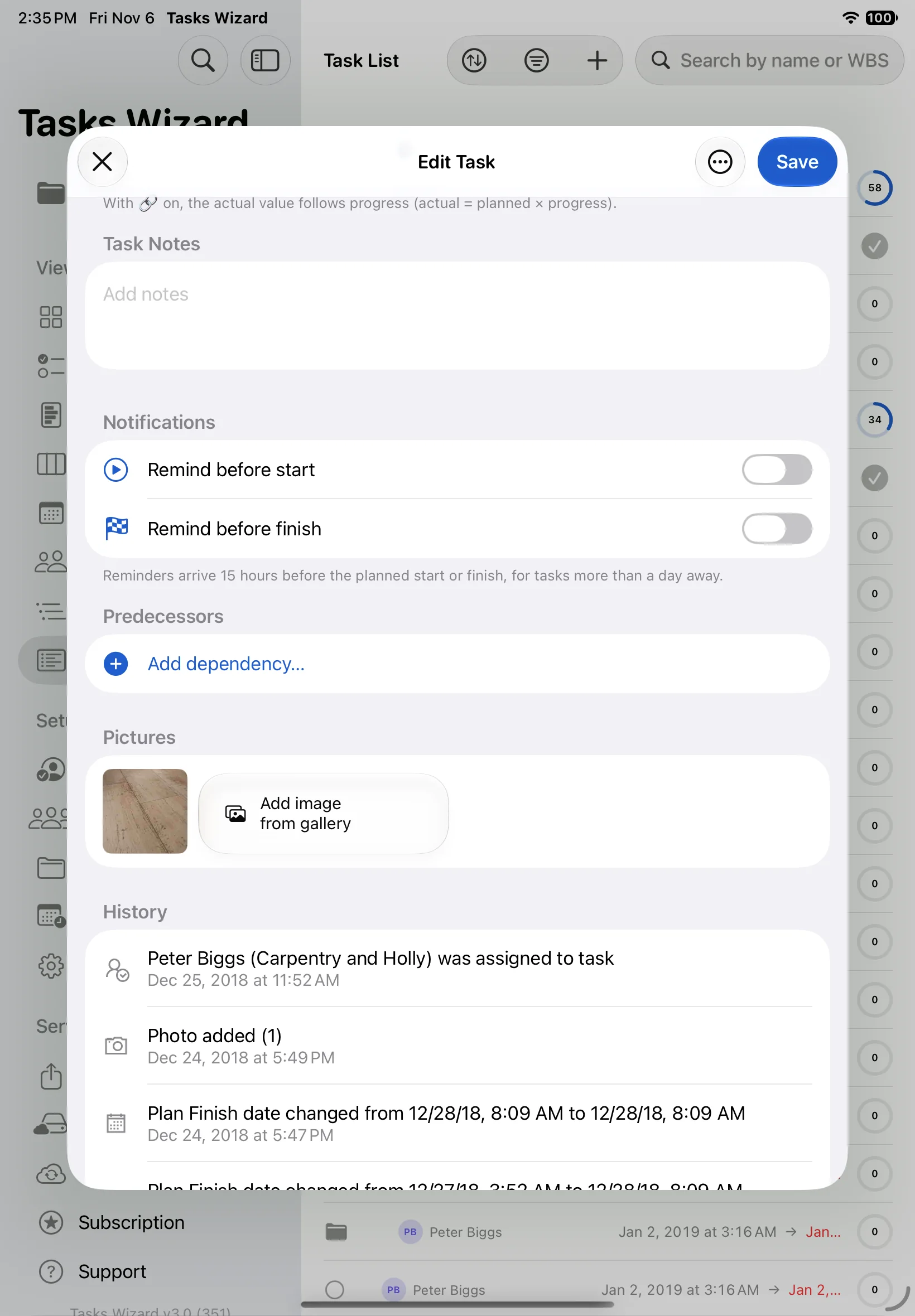
Under Pictures, tap + or Add image from gallery to attach photos to the task, and tap a thumbnail to see it in full size. Photo quality and saving a copy to your camera roll are set in Settings. Tasks with photos show a small image icon in the lists.
History records every change with its date: who was assigned, photos added, dates moved from one value to another, and so on.
Link tasks (dependencies)
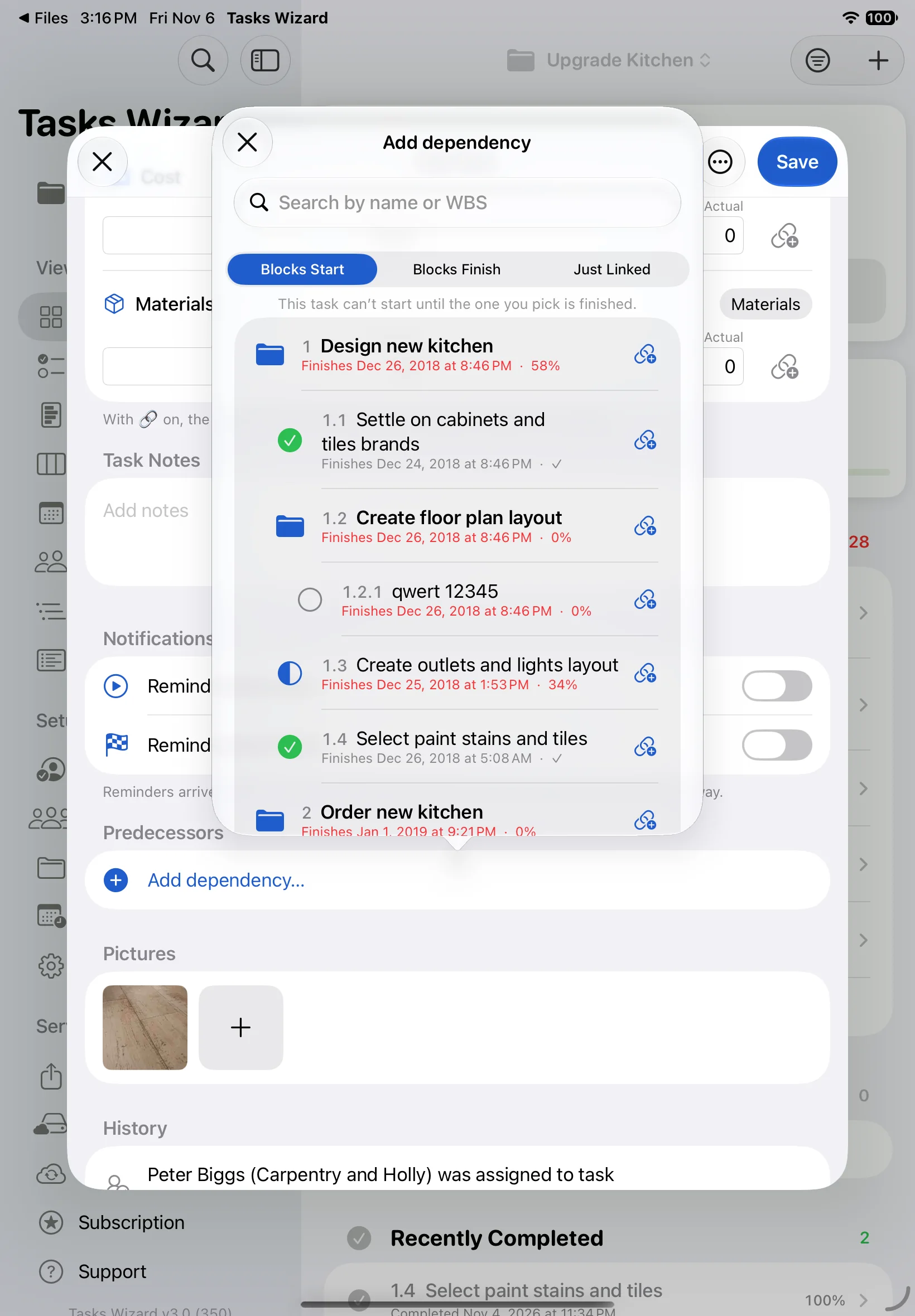
Under Predecessors, tap Add dependency…. Choose the type of link first, then pick the task:
- Blocks Start: this task can’t start until the one you pick is finished;
- Blocks Finish: this task can’t finish until the one you pick is finished;
- Just Linked: a reference only, with no blocking.
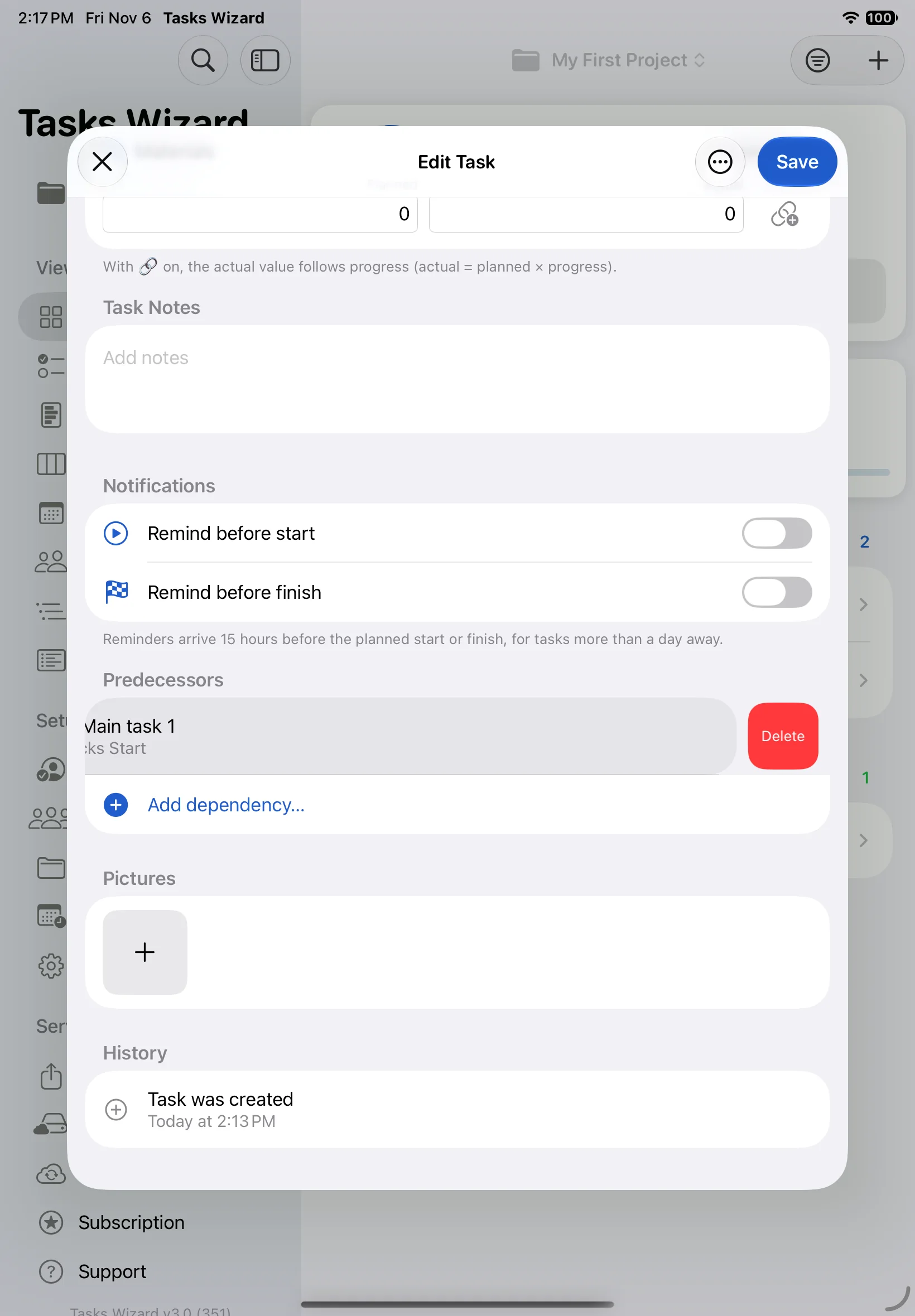
To remove a link, swipe the predecessor to the left and tap Delete. Only the link is removed; the other task stays.
Delete a task
Open the task, tap the ⋯ button next to Save and choose Delete. Deleting a group also deletes all of its subtasks.
Team members
Your team
Open Team in the sidebar to see everyone you can assign tasks to. Tap + to add a person, or tap a name to edit it.
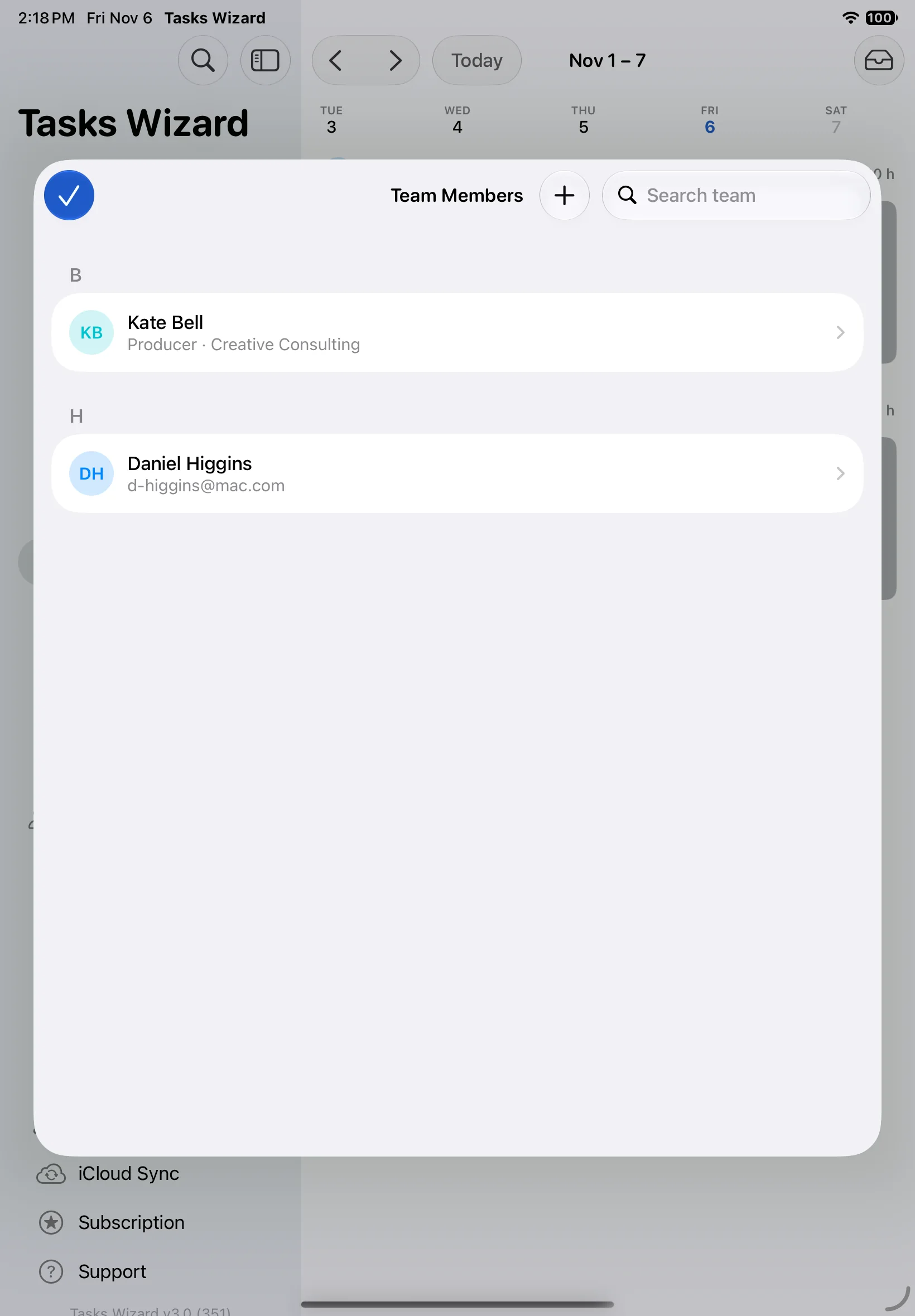
Add a team member
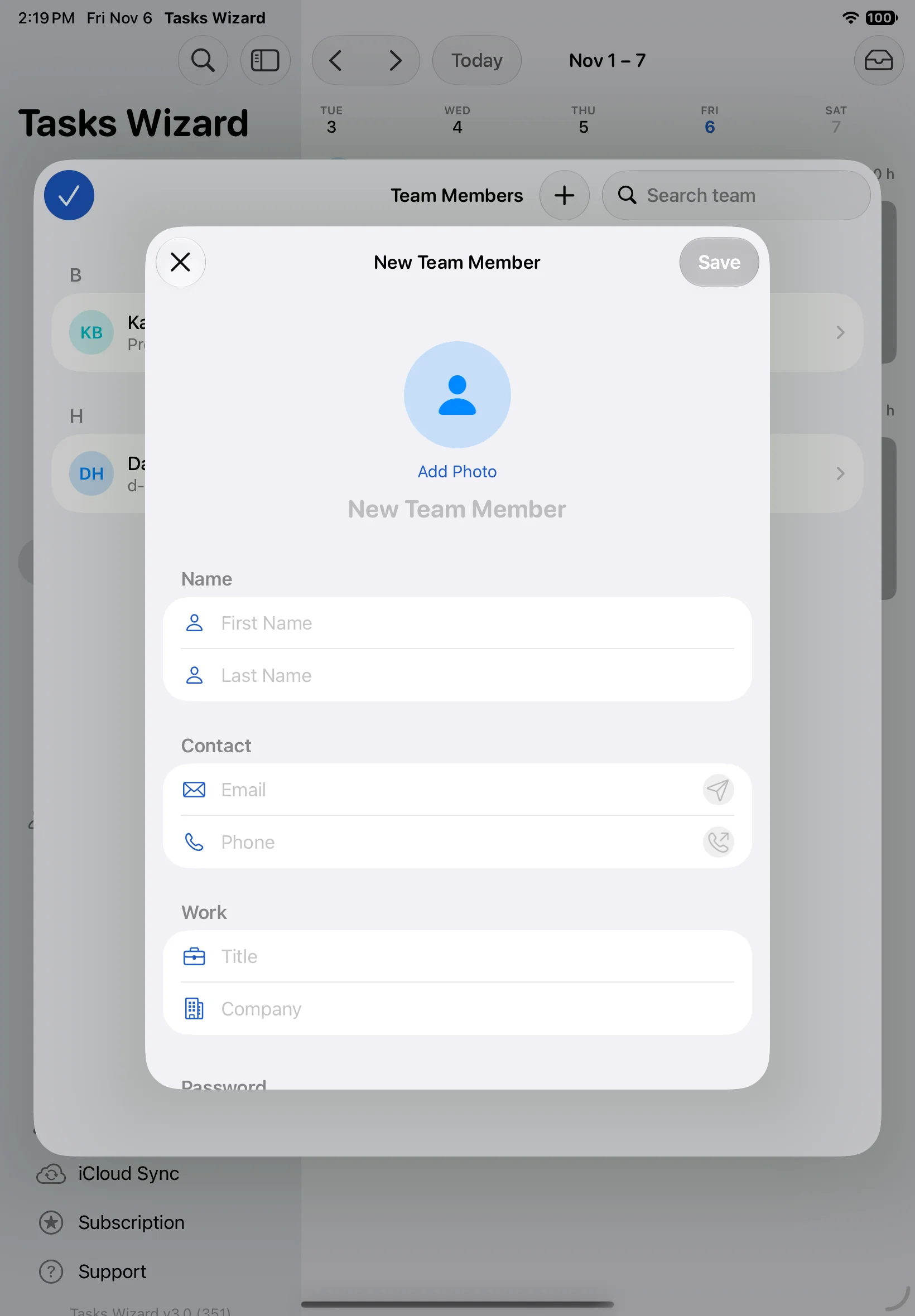
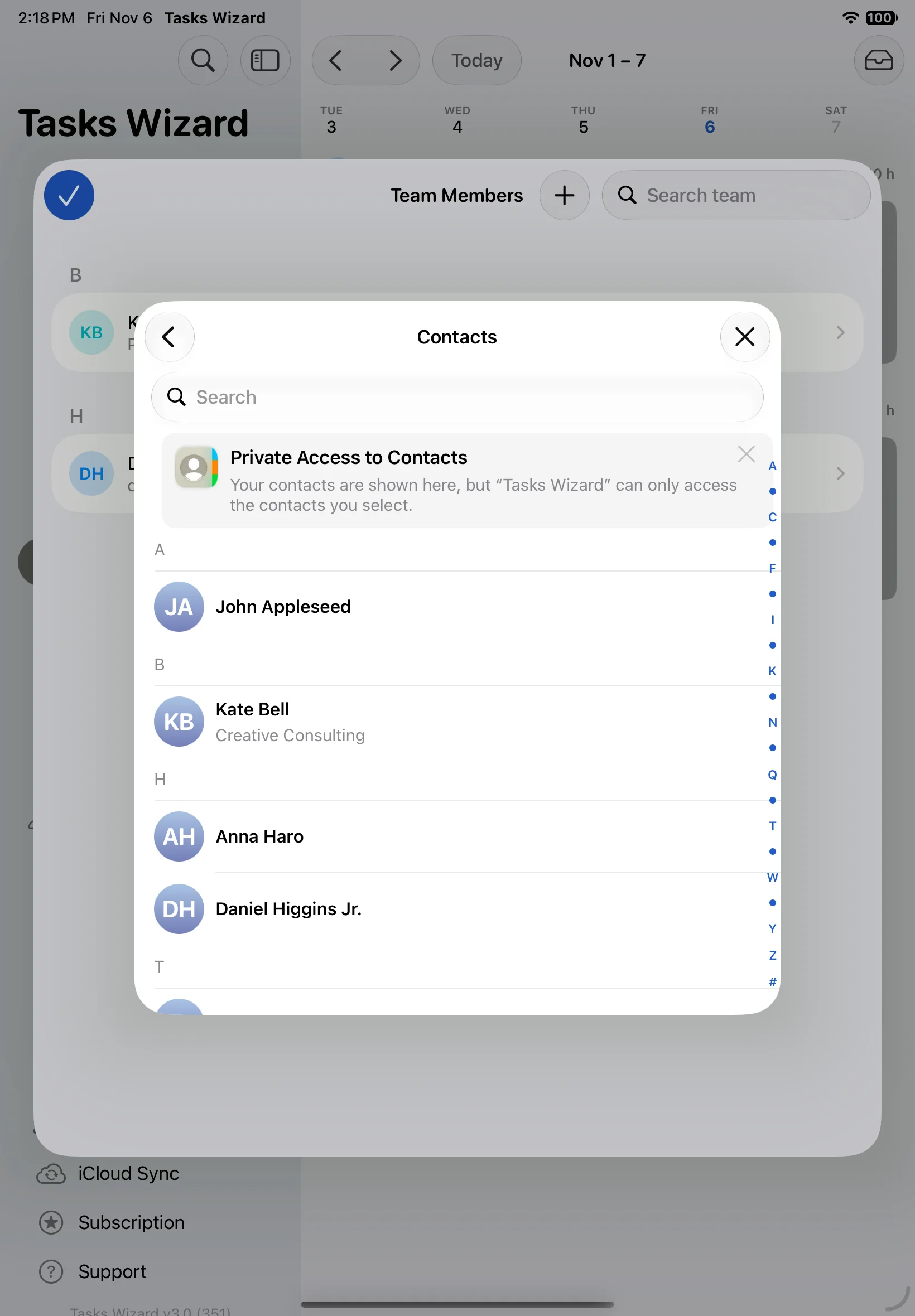
You can add someone in two ways:
- From scratch: enter a first and last name (required), and optionally a photo, email, phone, job title and company. A record can be protected with a password so it can’t be edited without it.
- From Contacts: pick someone from your contacts and their name, company, job title, email and phone are copied into the team. Deleting the team member later doesn’t affect the contact on your device.
To mark yourself, choose your record under Me in Settings. Your changes are then recorded under your name.
Views
The same tasks can be seen in several ways. Pick a view in the sidebar (on iPhone, from the tab bar or More). My Work lists everything assigned to you, sorted by due date, and Board shows tasks as cards in To Do, In Progress and Done columns.
Task List
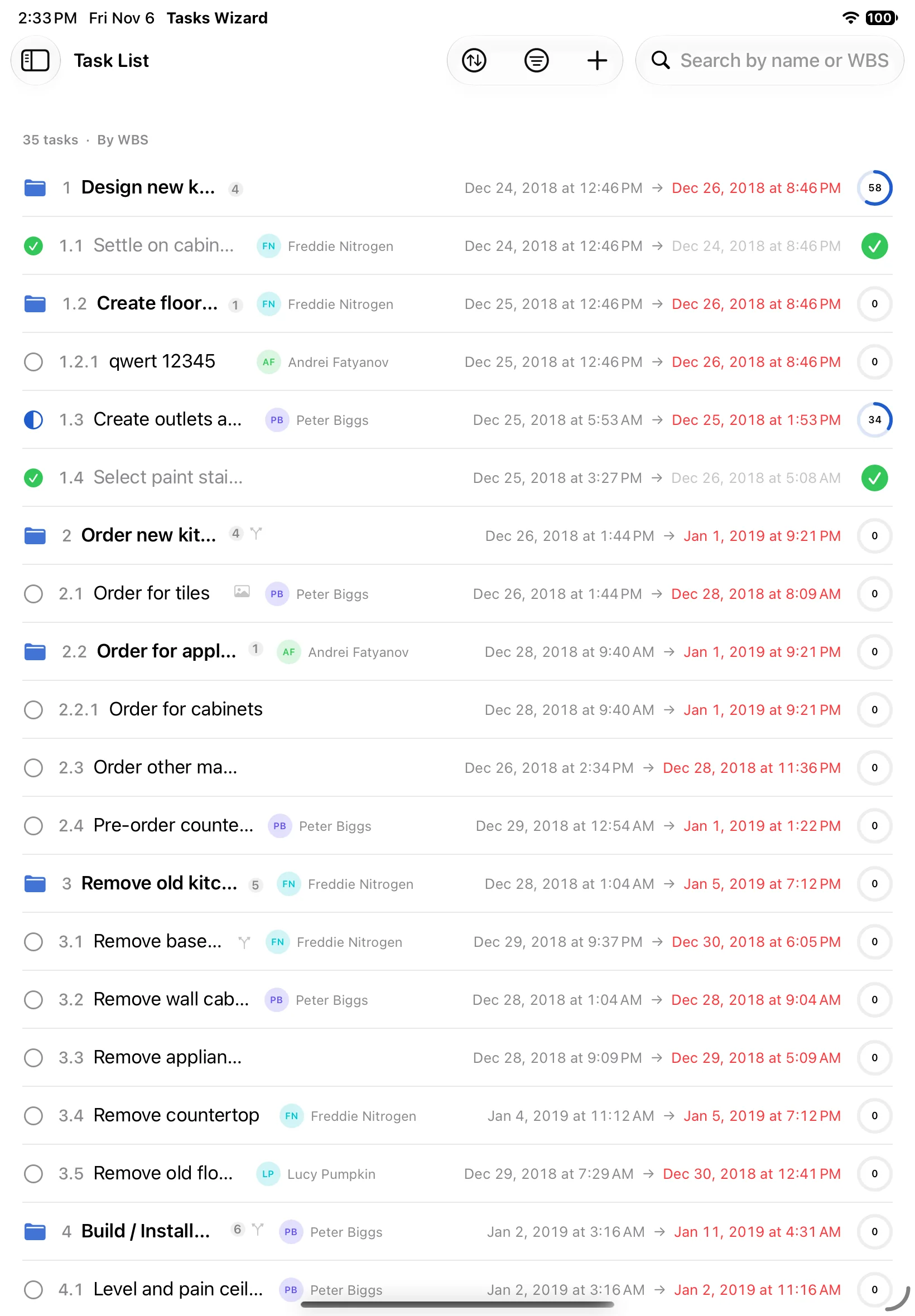
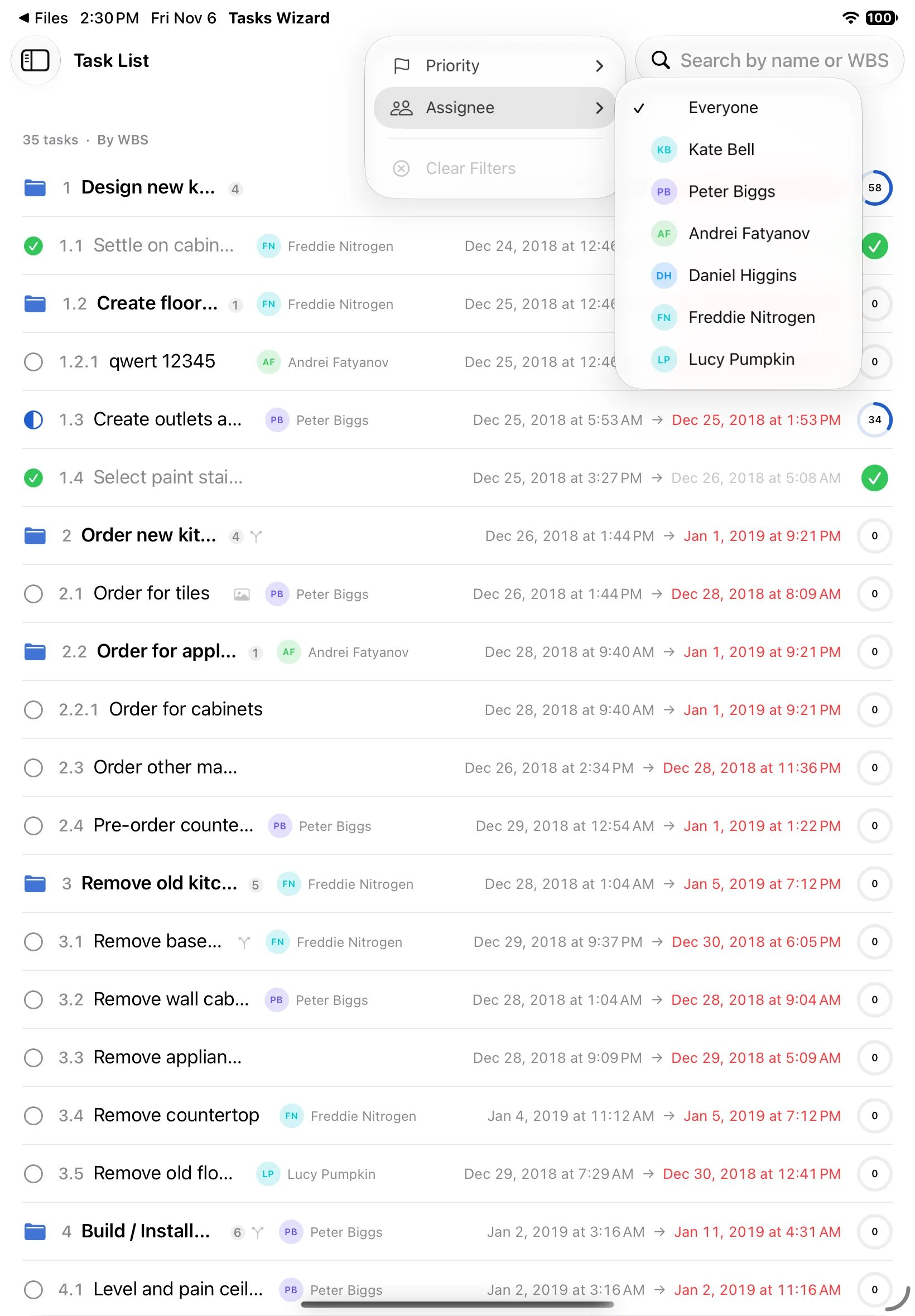
Task List shows every task in one list, with WBS number, assignee, dates and progress. Use the search field to find tasks by name or WBS, the sort button to change the order, and the filter button to show only certain priorities or one assignee. Clear Filters shows everything again.
Outline
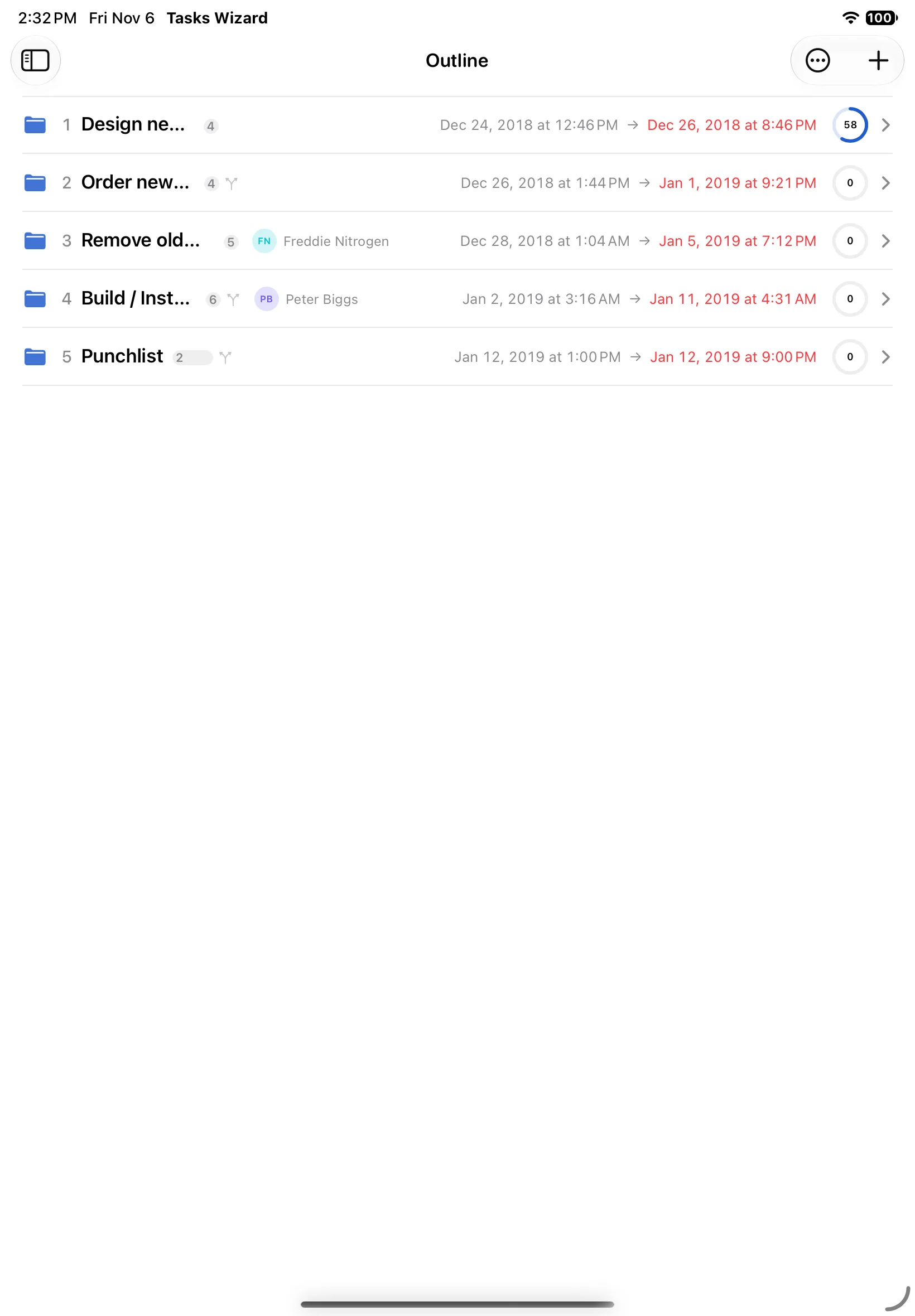
Outline is your work breakdown as a tree. It starts with the top-level phases; tap a group to open its subtasks. Drag tasks to reorganize the plan; the WBS numbering updates itself.
Timeline (Gantt chart)
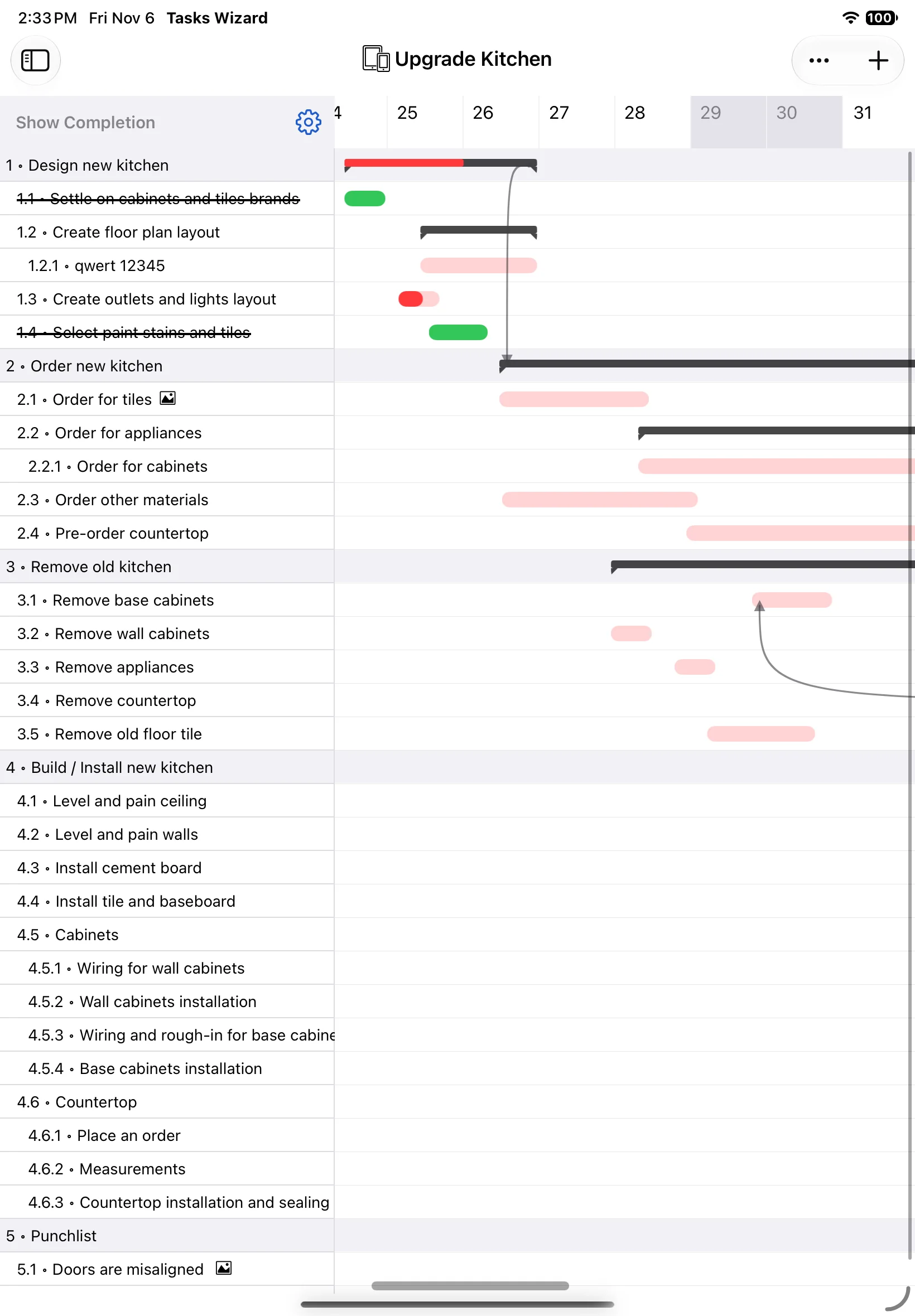
Timeline shows the whole project as a Gantt chart: tasks indented by level, groups as dark bars, and arrows for dependencies. Completed tasks are struck through, and overdue ones are shown in red.
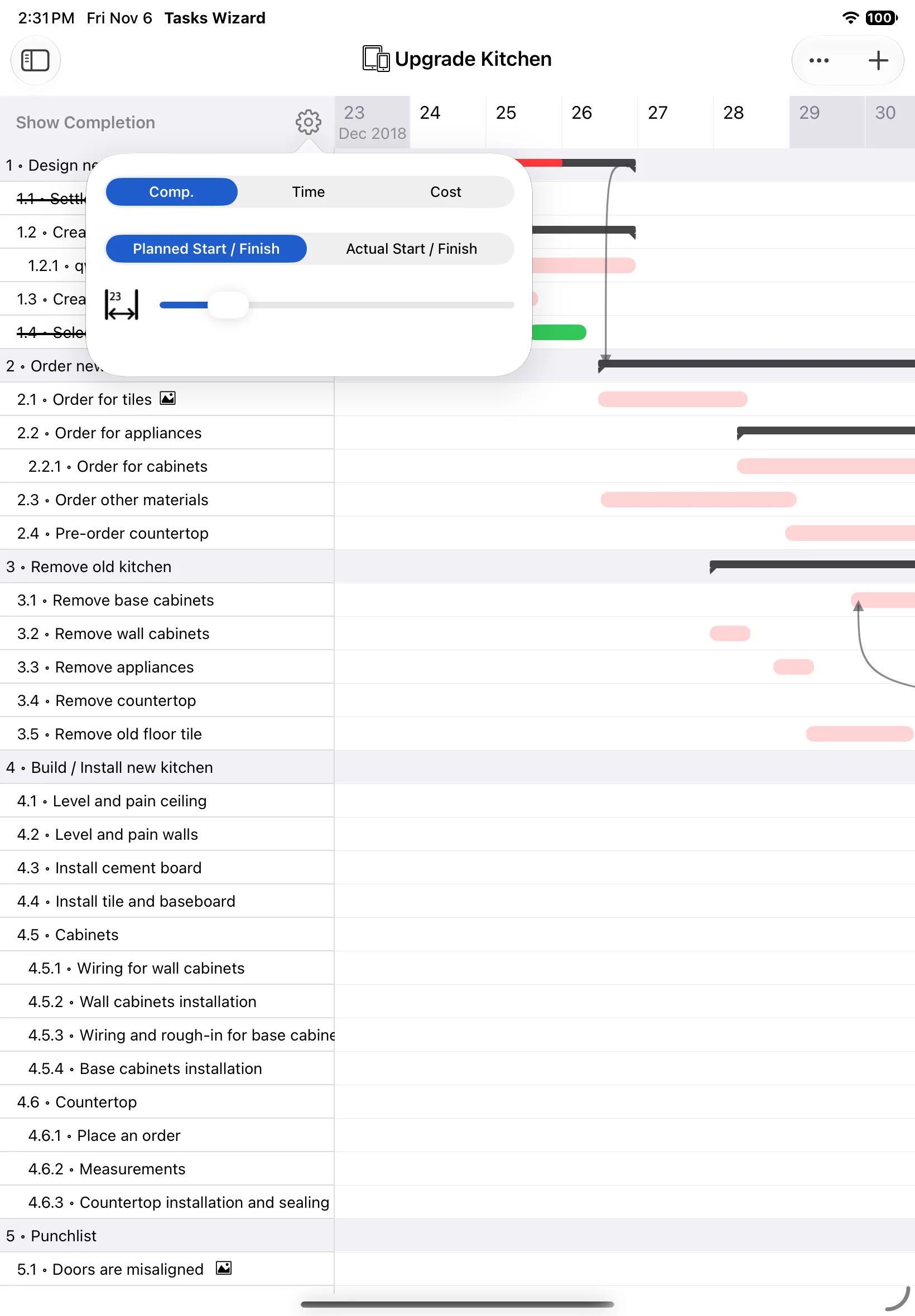
Drag a bar to move a task, or drag its end to change the duration; tasks that depend on it follow. The gear button above the task list sets what the bars show (Completion, Time or Cost), whether they use planned or actual dates, and how wide the day columns are. Grey columns are non-working days.
Calendar
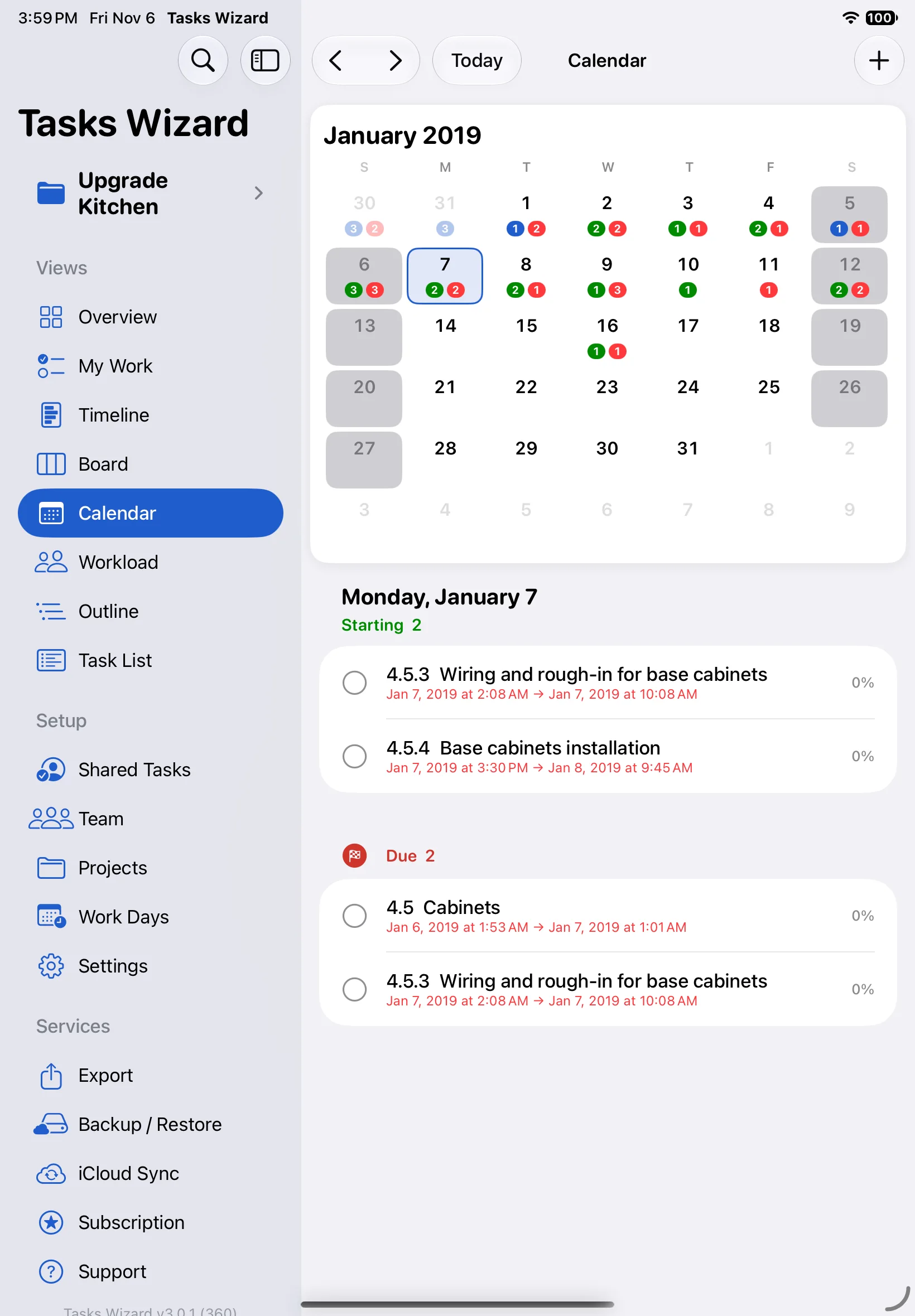
Calendar shows a month with small counters on each day: green for tasks starting that day, red for tasks due. Grey days are non-working days. Tap a day to see its tasks below the calendar, grouped into Starting and Due, and tap a task to open it. Use the arrows or Today to move between months.
Workload
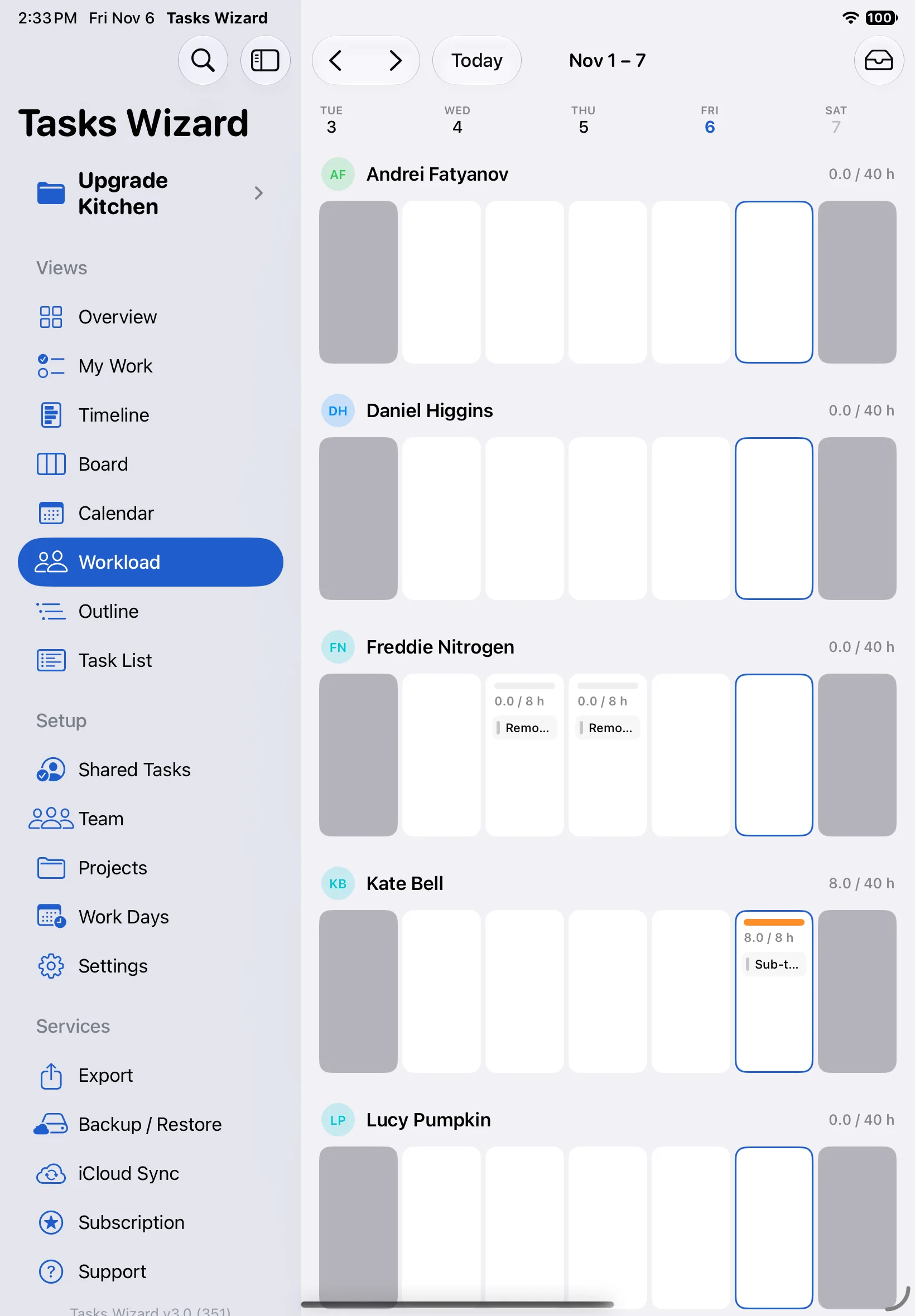
Workload is a week board with one row per team member. Each day shows that person’s tasks and their planned hours against the length of a work day, so overloaded days stand out. Drag tasks between days and people to rebalance the work. Use the arrows or Today to change the week; grey days are non-working days.
Settings
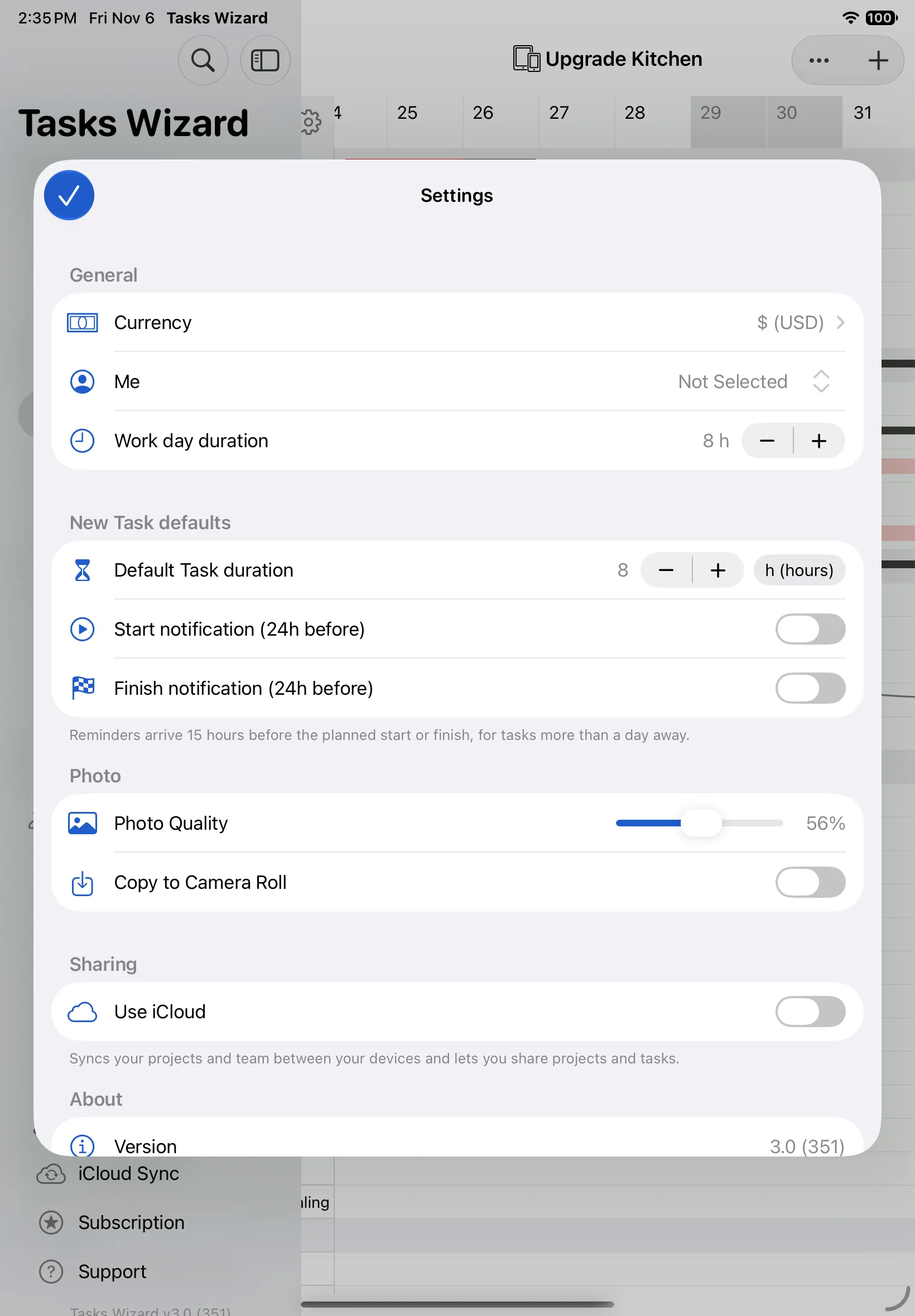
Open Settings in the sidebar (on iPhone, under More):
- General: the currency for costs, Me (your team-member record) and the length of a work day.
- New Task defaults: the default task duration and whether new tasks get start and finish reminders.
- Photo: the quality of attached photos, and whether to save a copy to your camera roll.
- Sharing: Use iCloud to sync your projects and team between your devices, and to share projects and tasks.
Your working week and holidays are set separately under Work Days.
Export and import
Export a project
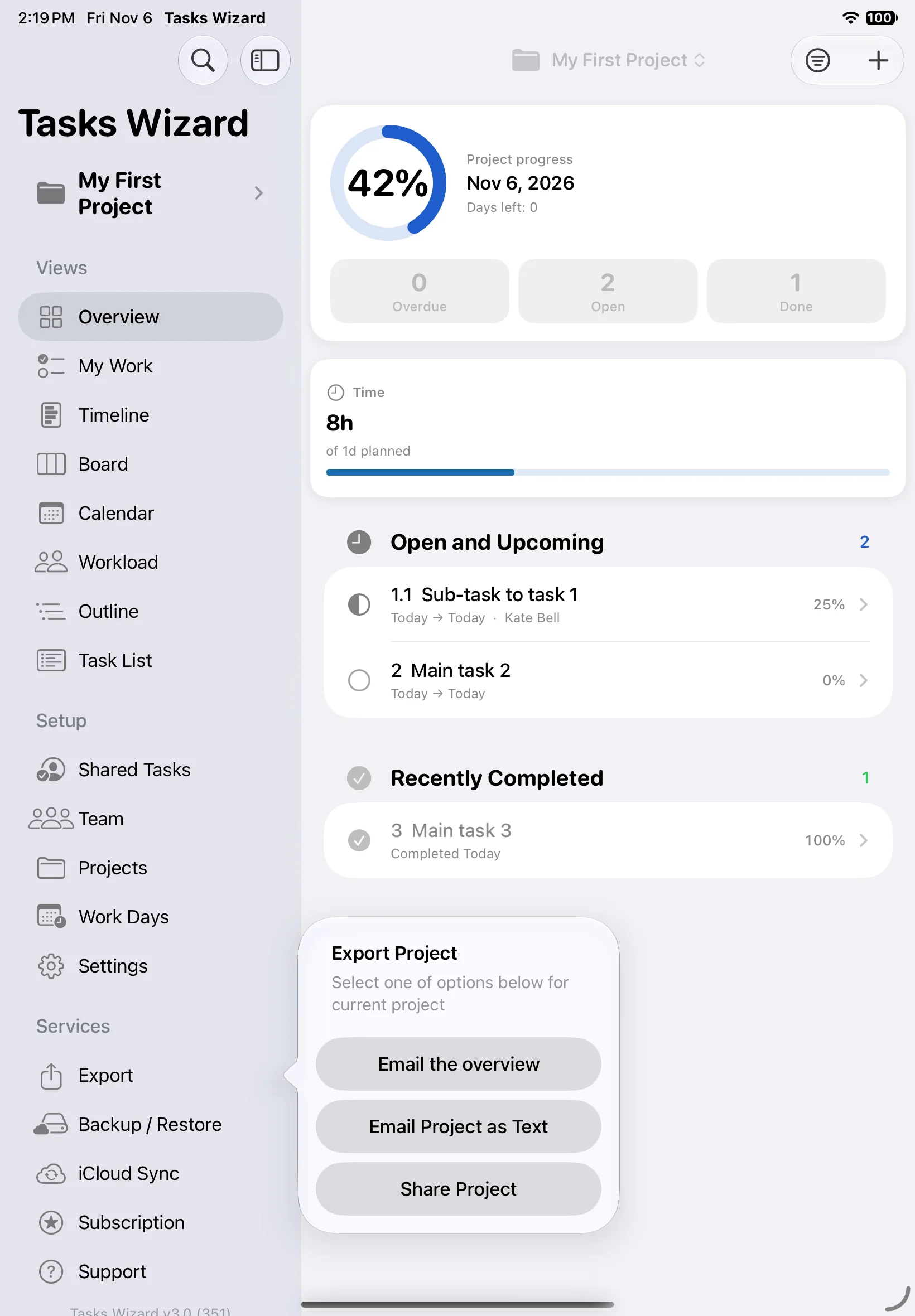
Choose Export in the sidebar to share the current project:
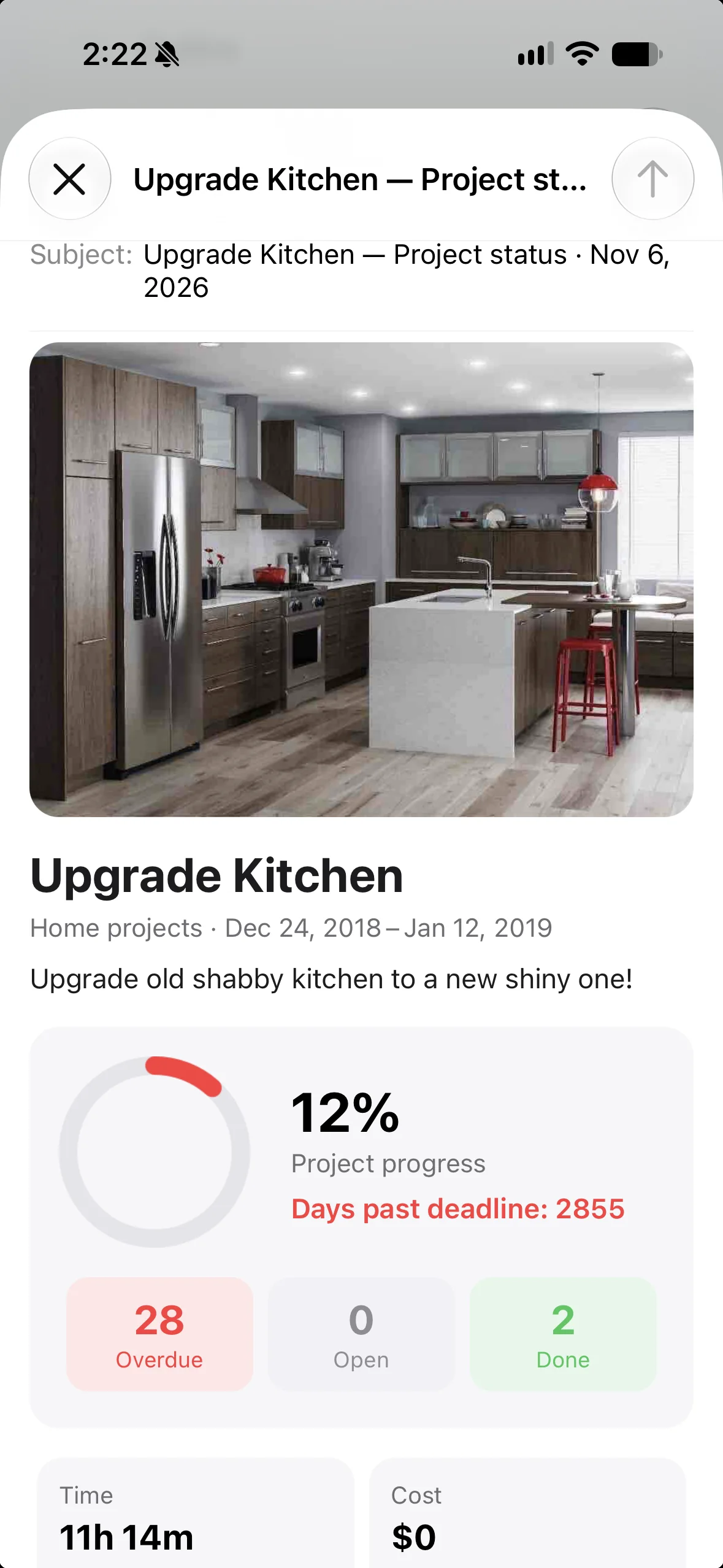
- Email the overview: a polished project status report with the project photo, progress, overdue, open and done counts, time and cost.
- Email Project as Text: the full task list in the body of an email.
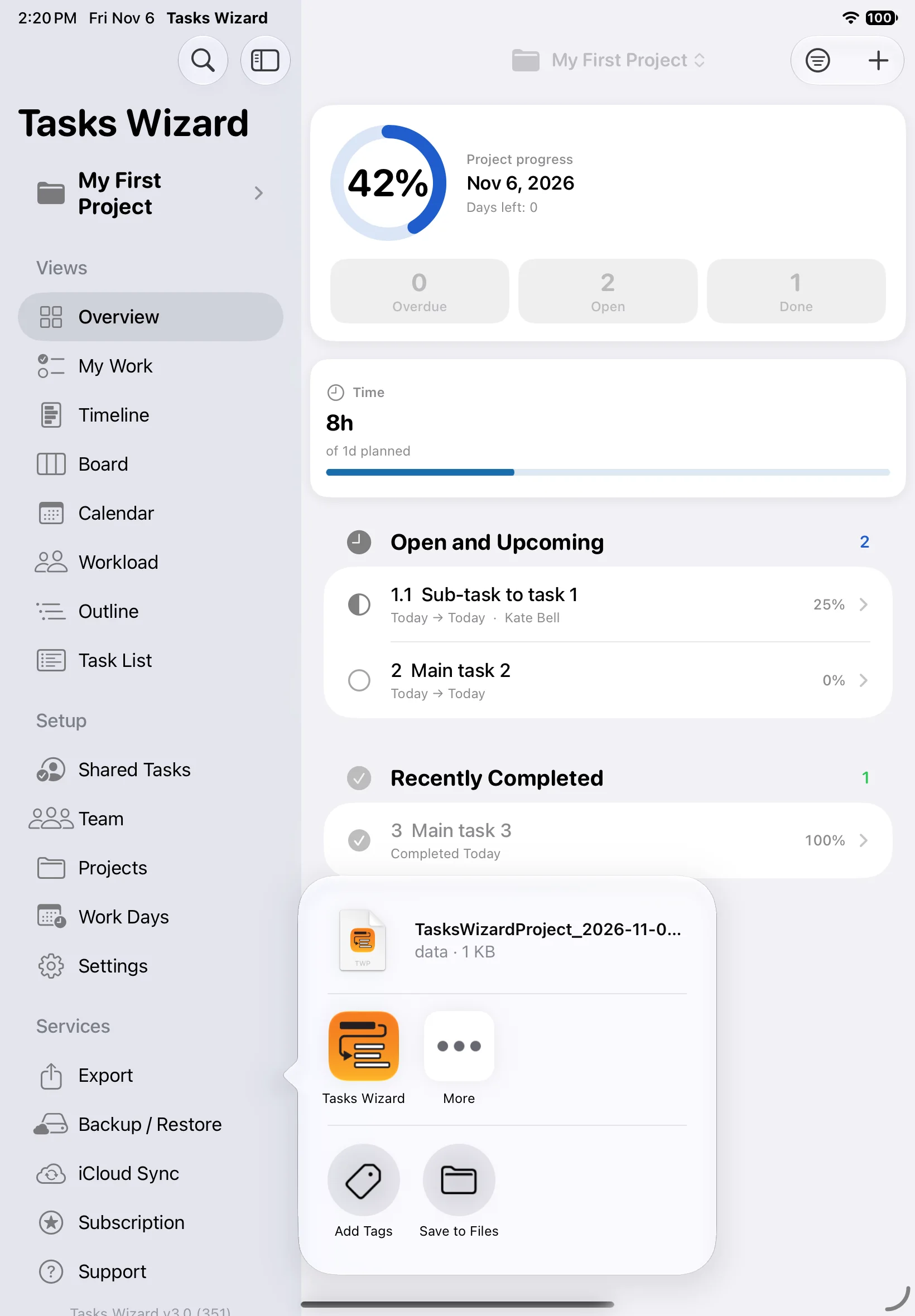
- Share Project: a Tasks Wizard project file, to open on another device or send to another Tasks Wizard user. Send it with AirDrop, Messages or Mail, or save it to Files.
Import a project
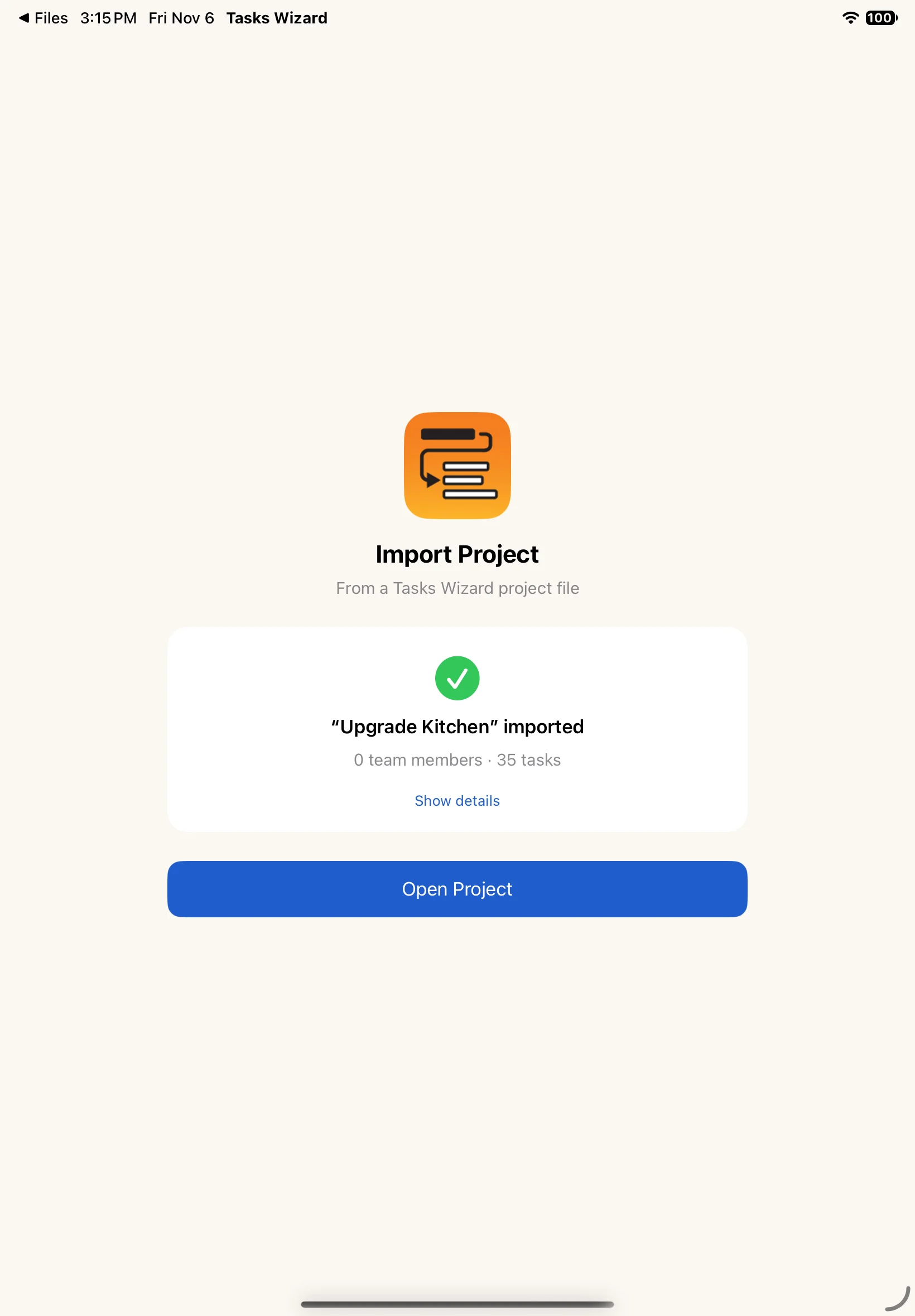
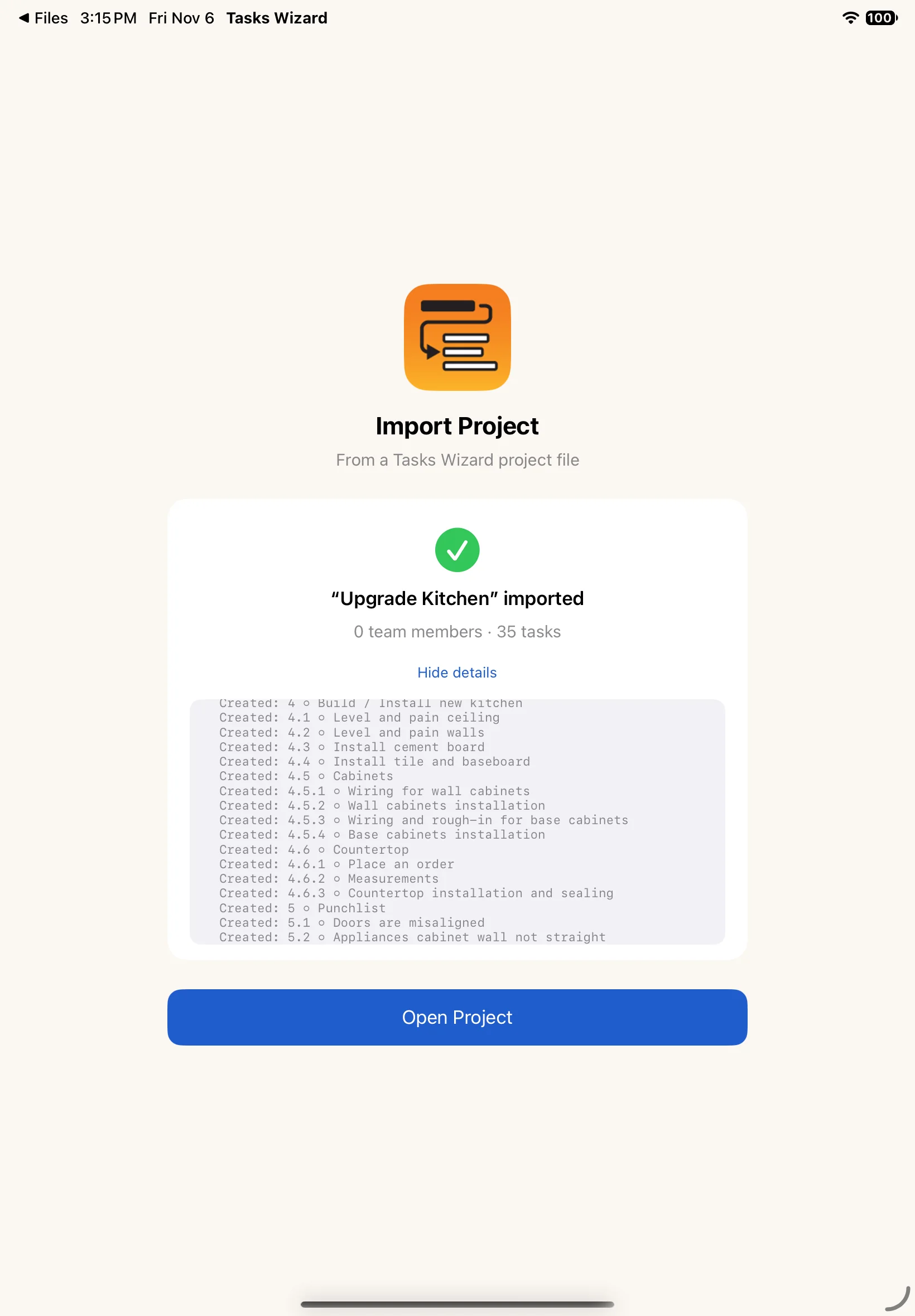
Open the project file on the other device (for example, tap it in Files or Mail) and choose Tasks Wizard. The Import Project screen shows how many tasks and team members were imported; Show details lists every record created. Tap Open Project to start working on it.
Privacy note: a project file includes the team members assigned to its tasks, with their names, emails and phone numbers. They are added to the team on the device that imports it. It’s up to you whether to share that information.
iCloud sync and sharing
iCloud sync
With Use iCloud turned on in Settings, your projects and team stay in sync on all your devices signed in to the same Apple Account. To sync a project, also turn on Share via iCloud in its project settings.
Changes appear on your other devices within moments when they’re online. If a device is offline, changes are kept on it and sent as soon as it reconnects. iCloud Sync in the sidebar sends your changes straight away.
Backup and restore
Backup / Restore in the sidebar saves all your projects to your iCloud storage and restores them on the same or another device signed in to the same Apple Account. Each new backup replaces the previous one.
Share a task with someone outside your team
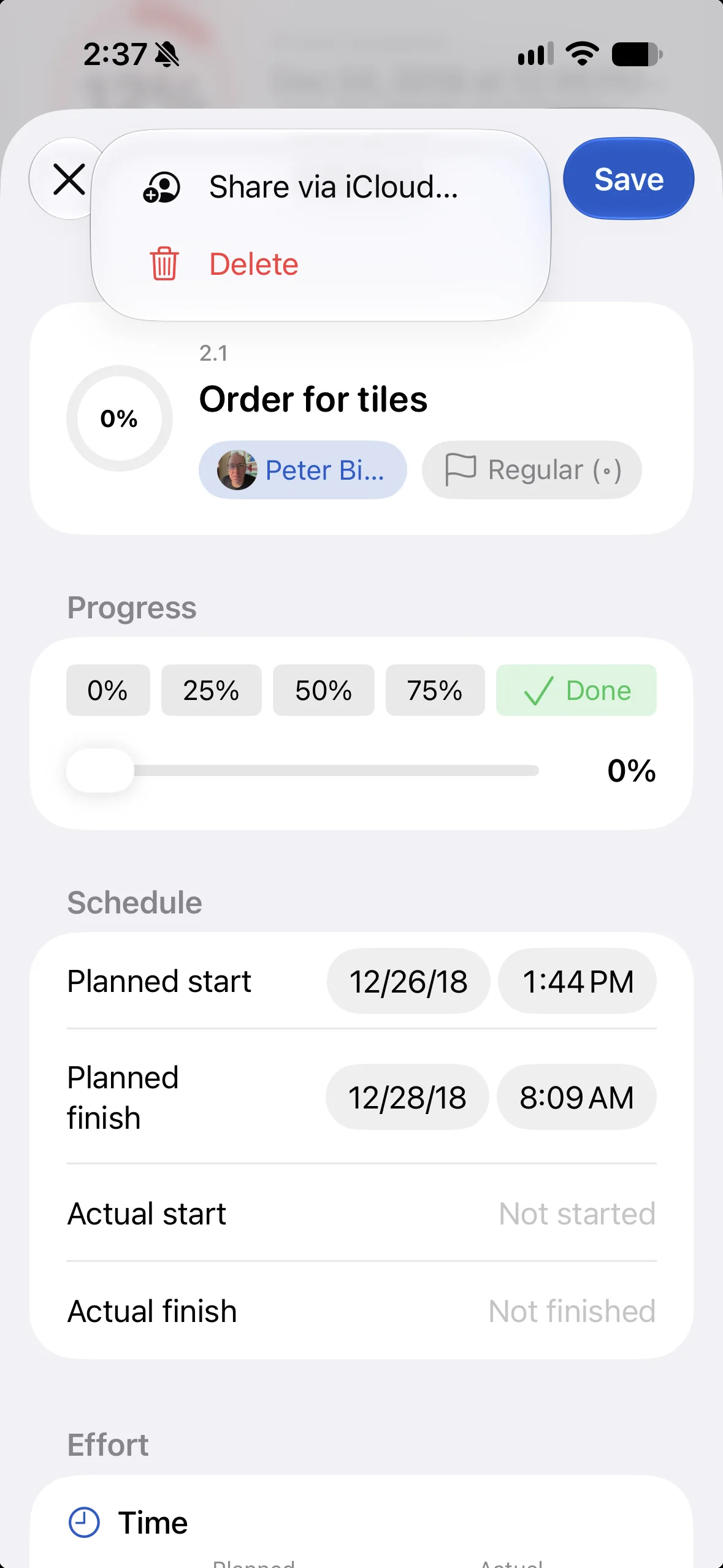
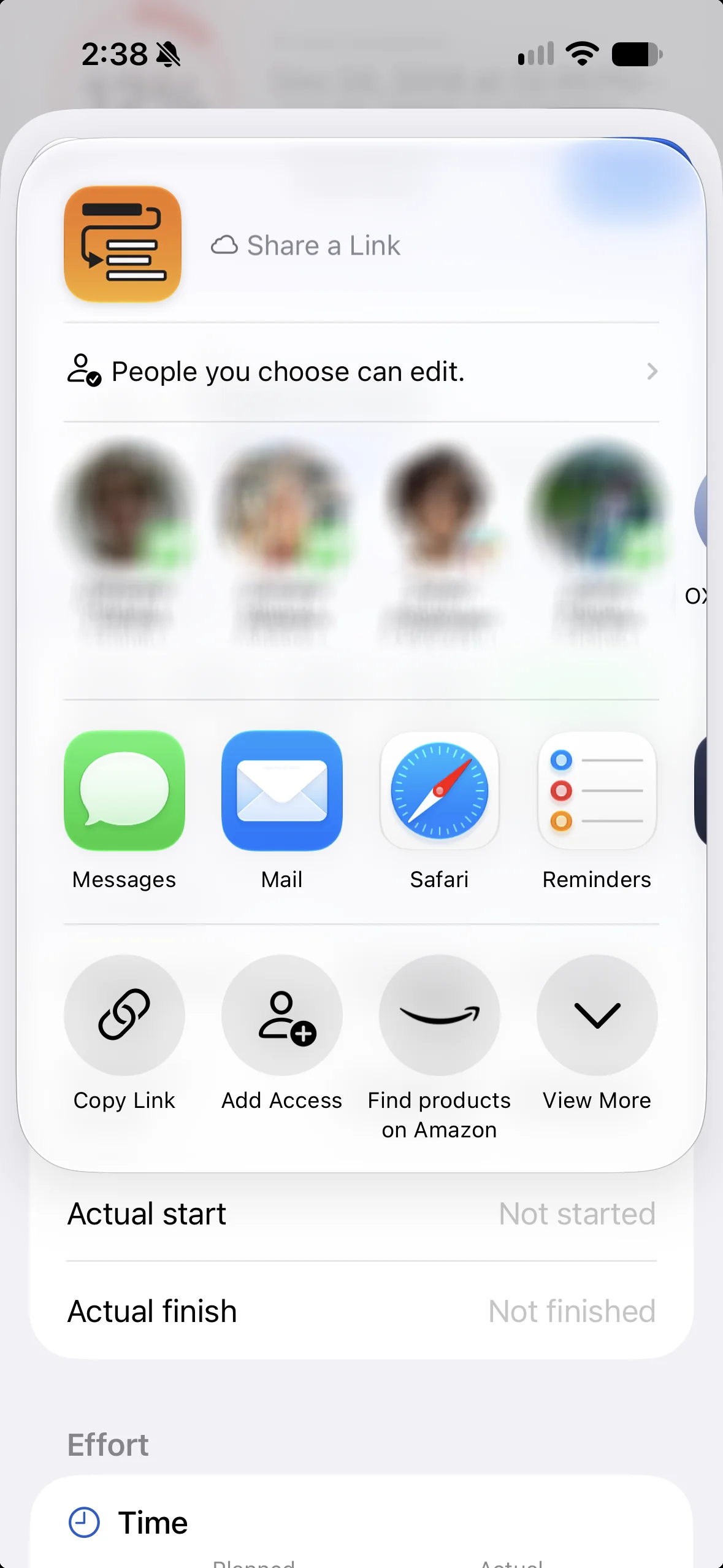
In a project that’s shared via iCloud, you can share individual tasks with other people. Open the task, tap ⋯ and choose Share via iCloud…, then invite people with Messages, Mail or a link. The people you invite can update the task from their own device after they accept.
Tasks shared with you
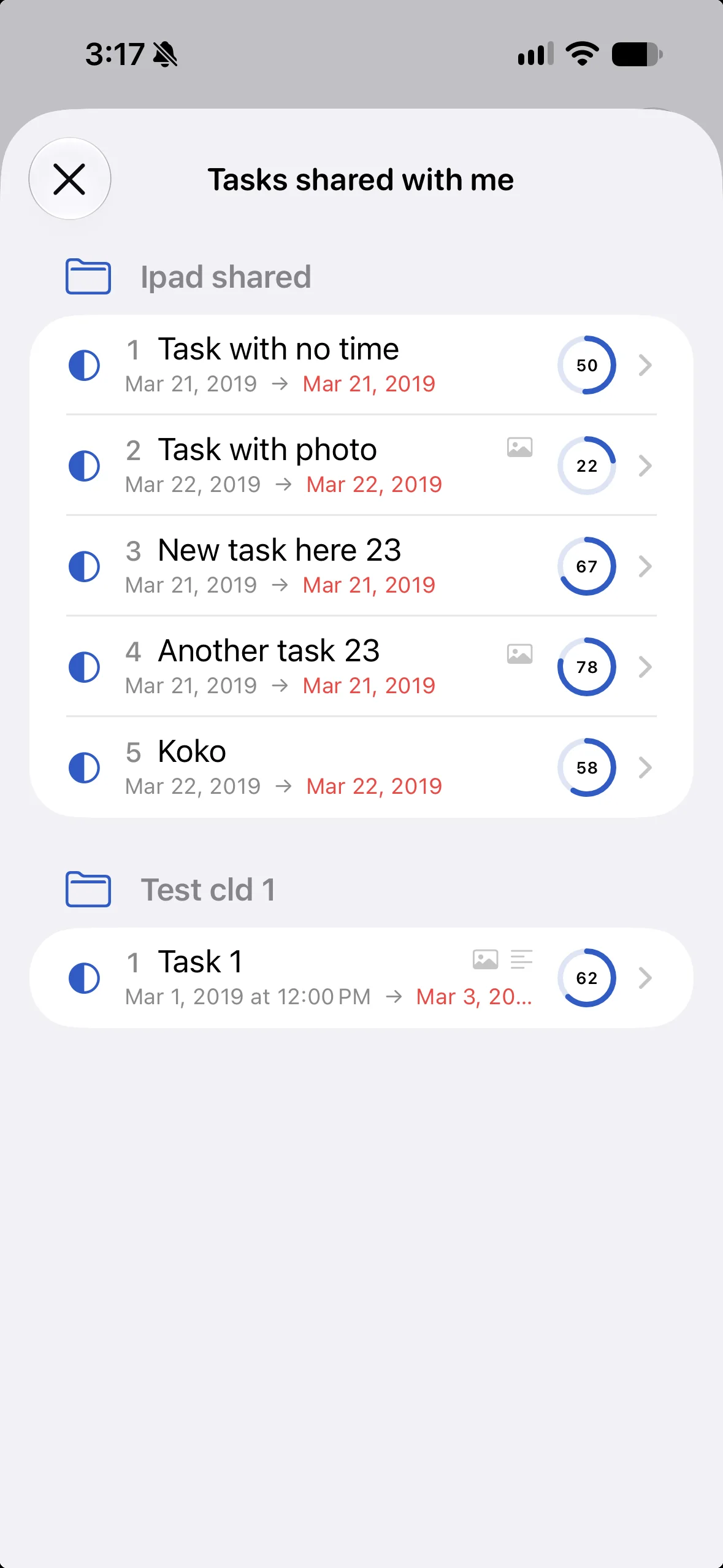
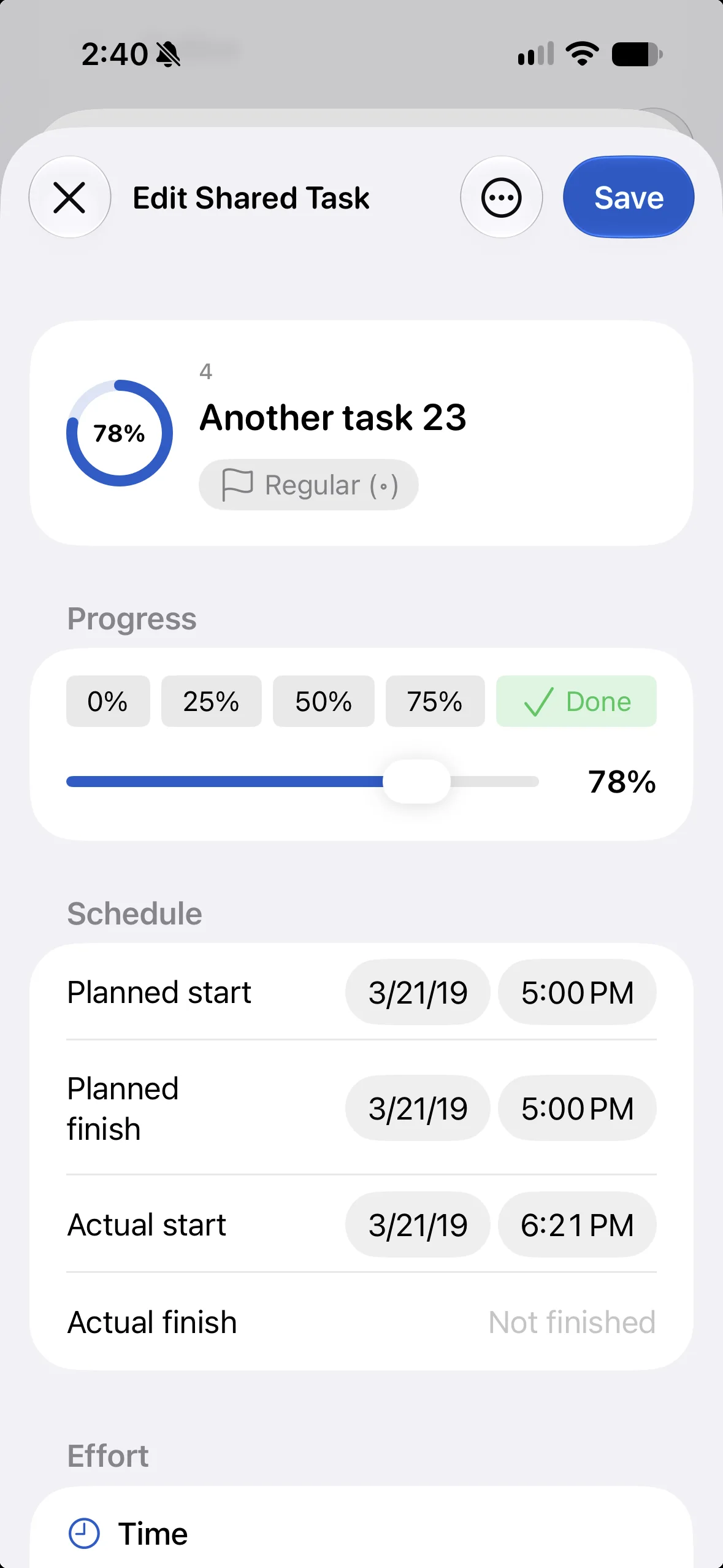
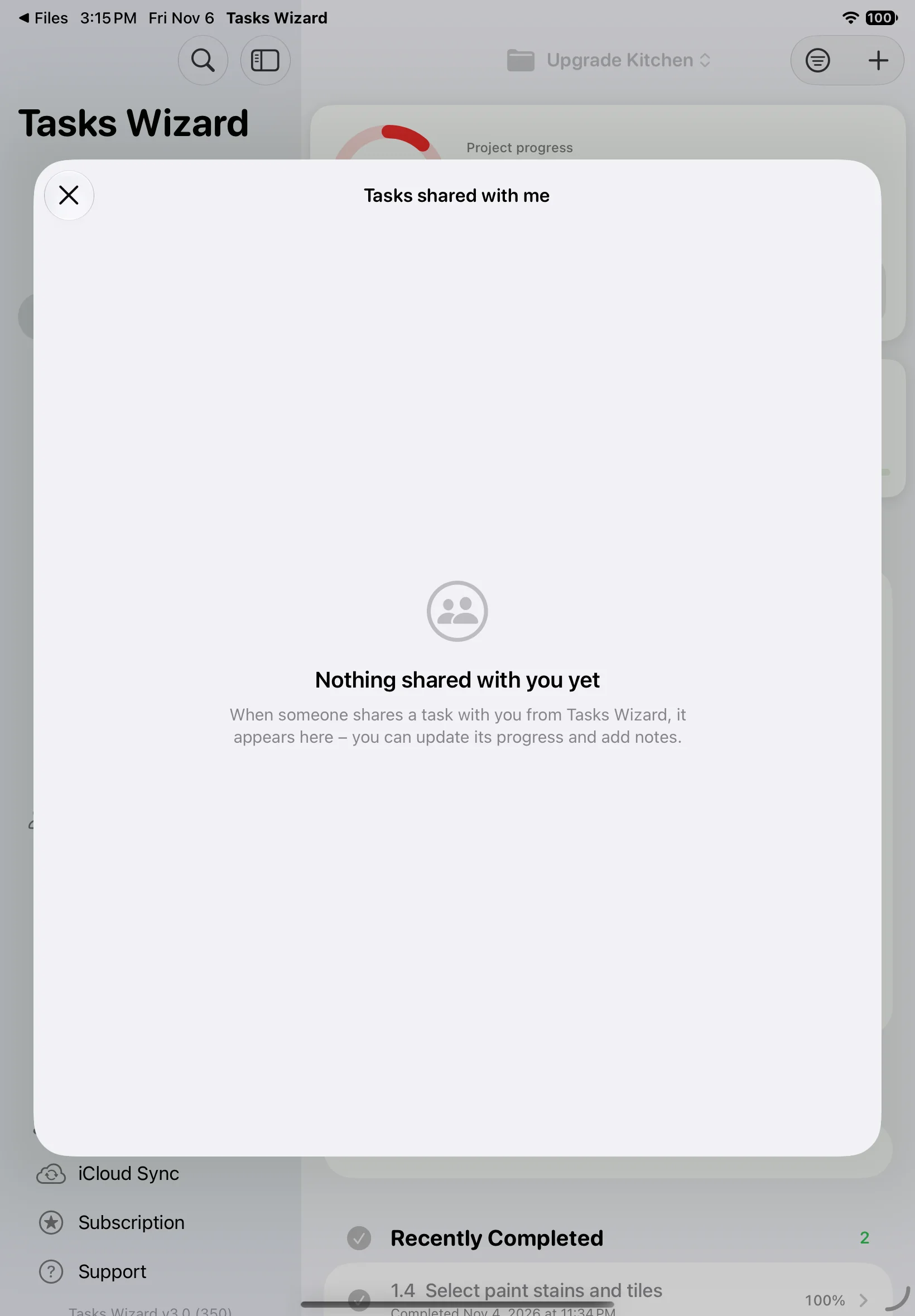
Tasks that other people share with you appear under Shared Tasks, grouped by project. Open one to update its progress, dates, effort and notes; the owner sees your changes. Until someone shares a task with you, the list is empty.
Subscriptions
Tasks Wizard is free to download and try. Tasks Wizard Pro unlocks unlimited projects and tasks, and every view and feature, on all your devices. There are two plans: annual, which costs less than twelve months, and monthly. New subscribers get a free trial.
Subscriptions renew automatically. You can turn off auto-renewal or cancel any time in your Apple Account settings; Subscription in the sidebar takes you there. You keep access until the end of the period you’ve paid for. On a new device, or after reinstalling, use Restore Purchases to get your subscription back. If the subscription ends, the Free mode limits apply again. The full details are in the Tasks Wizard terms of use.
Need more help?
If something isn’t covered here, send us a question through the Tasks Wizard support form. If you enjoy Tasks Wizard, a rating or review on the App Store helps us a lot. Thank you for using it!